
Screens and dialogs
Every window FlexiData opens, and how you get there.
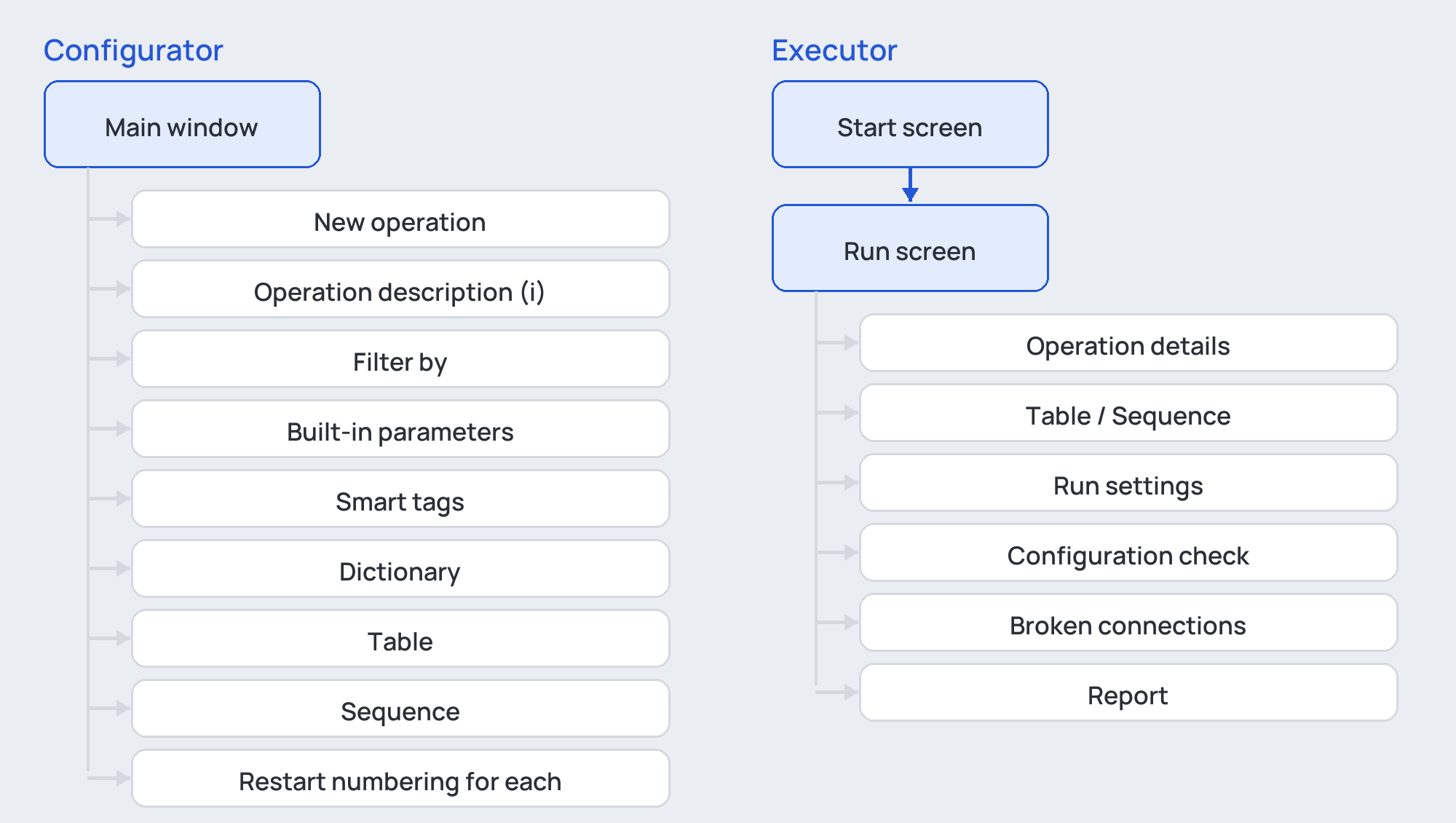
Configurator
| Window | Opened by | Page |
|---|---|---|
| Main window | Configurator on the ribbon, or the Start menu | The Configurator |
| New operation | New operation… (Ctrl+N) | New operation |
| Operation description | ⓘ beside the operation type | Operation description |
| Filter by | The funnel beside the category search (Filter by…) | The filter |
| Built-in parameters | The database button of a parameter field | Built-in parameters |
| Smart tags | The tag button of a value field | Smart tags |
| Dictionary | Dictionary… | The Dictionary |
| Table | The pencil in Map Values' step 3 | Map Values |
| Sequence | The pencil in Combine Values' step 2 | Combine Values |
| Restart numbering for each | The pencil in Unique Identifier's step 4 | Unique Identifier |
| Some operations still need attention | Save, while an operation is incomplete | The operation list |
Executor
| Window | Opened by | Page |
|---|---|---|
| Start screen | Executor on the ribbon | The Executor |
| Run screen | Opening a .fdc file |
The run screen |
| Operation details | Clicking an operation's name | Operation details |
| Table / Sequence / Restart numbering for each | Table… / Sequence… / Restart numbering for each… in the details | Operation details |
| Run settings | The right card of the run screen | Run settings |
| Configuration check | Run, when the file does not fit the model | The configuration check |
| Broken connections | A run that meets disconnected pipes or fittings | Broken connections |
| Report | The end of a run | The report |