Elements of the interface
The same small controls appear on every operation card and in every dialog. This page is the key
to them.
Parameter fields
| Element |
What it means |
 |
Instance — the parameter is read or written on the element itself. Click to switch |
 |
Type — the parameter is read or written on the element's type. Click to switch |
 |
Lock — a built-in parameter picked from the list: Revit decides whether it is instance or type, so it cannot be switched |
 |
Chip — a built-in parameter picked from the list: its name, its Revit identifier and ✕ to go back to typing |
 |
Built-in parameters — opens the list of Revit's own parameters |
 |
Smart tags — opens the list of smart tags for a value field |
| Element |
What it means |
 |
Edit — opens a list or table that does not fit on the card: the Table, the Sequence, Restart numbering for each |
 |
+ adds another parameter to a step that takes several; the bin removes that row |
 |
Filter by… — opens the filter; a dot on it means the operation has one |
 |
ⓘ — the full description of the operation |
In the list of operations
| Element |
What it means |
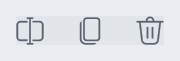 |
Rename, Duplicate, Delete — appear when the pointer rests on a row |
 |
Amber warning — after a save was refused: the operation is missing something it needs to run, such as a category or a target parameter |
Marks and states
| Element |
What it means |
 |
N selected — how many categories the operation is ticked for |
Gray text after a step's title describes what goes there; light gray text inside an empty field is
a placeholder, not a value. A red frame around a field means its content cannot be used; the reason
stands under it.
