
Getting started
FlexiData fills, corrects and organizes parameter values across a Revit model. You describe the work once as a list of rules, and FlexiData applies them to thousands of elements in one run, the same way every time. Typical jobs:
- room numbers on furniture, equipment and doors
- grid locations on columns, levels on everything
- classification codes and fire ratings from a table
- consistent marks, unique numbering, uppercase type marks
- moving elements onto the right worksets
The cycle
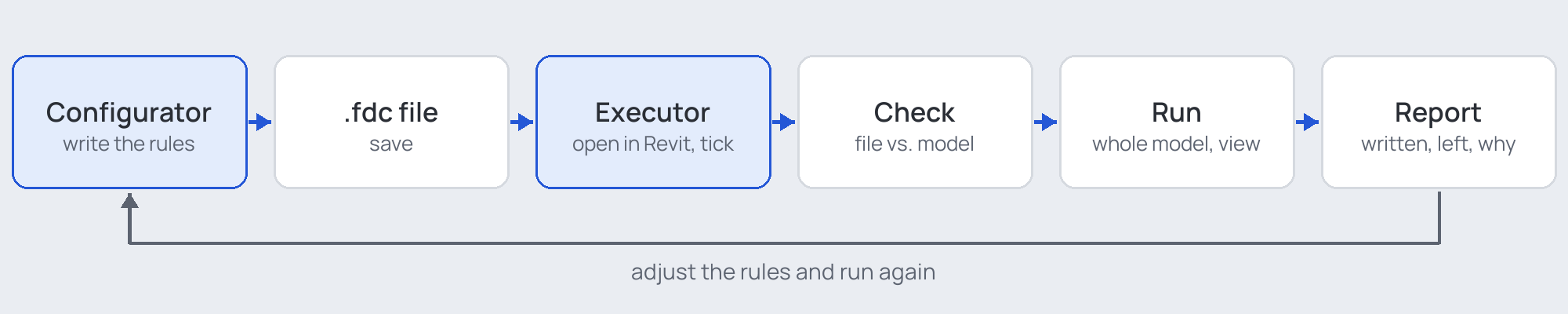
- Write the rules in the Configurator — a list of operations.
- Save them as a
.fdcfile. - Open the file in the Executor inside Revit, tick the operations to run and choose where: the whole model, the active view or a selection.
- Run. The Executor checks the file against the model first, then writes.
- Read the report: what was written, what was not and why.
- Adjust the rules if needed and run again. Most operations give the same result when run again on the same model; the few that do not say so on their pages.
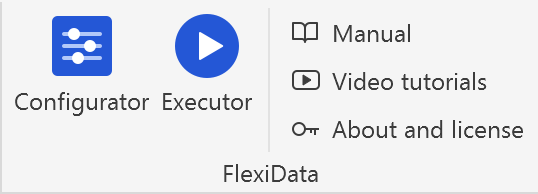
Both tools start from the FlexiData panel on Revit's ribbon: Configurator starts the Configurator, Executor opens the Executor window. The Configurator also starts from the Windows Start menu, without Revit.
Key ideas
Everything else in this manual is a variation of these.
An operation is one rule. It answers three questions in its numbered steps: which elements (step 1 Categories), what value (the operation's own steps) and into which parameter.
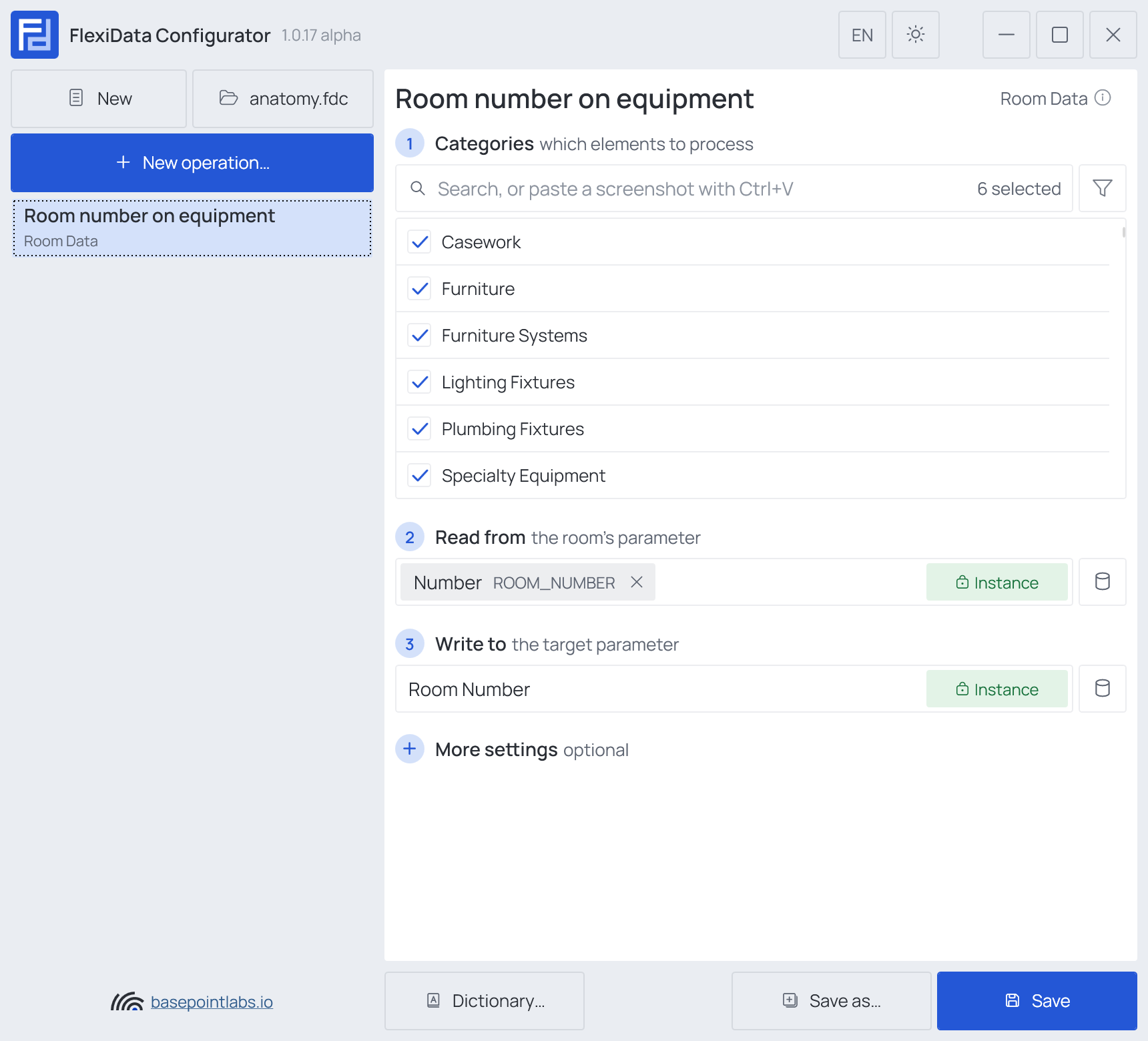
Step 1 Categories picks the elements — here furniture, casework, fixtures and equipment in one go — step 2 Read from names the room's parameter to read, step 3 Write to the parameter to write, and More settings holds the options rarely needed. Every operation is laid out the same way — see The operation card.
A file holds as many operations as a task needs; they are listed on the left. Categories can be narrowed further with a filter when needed.
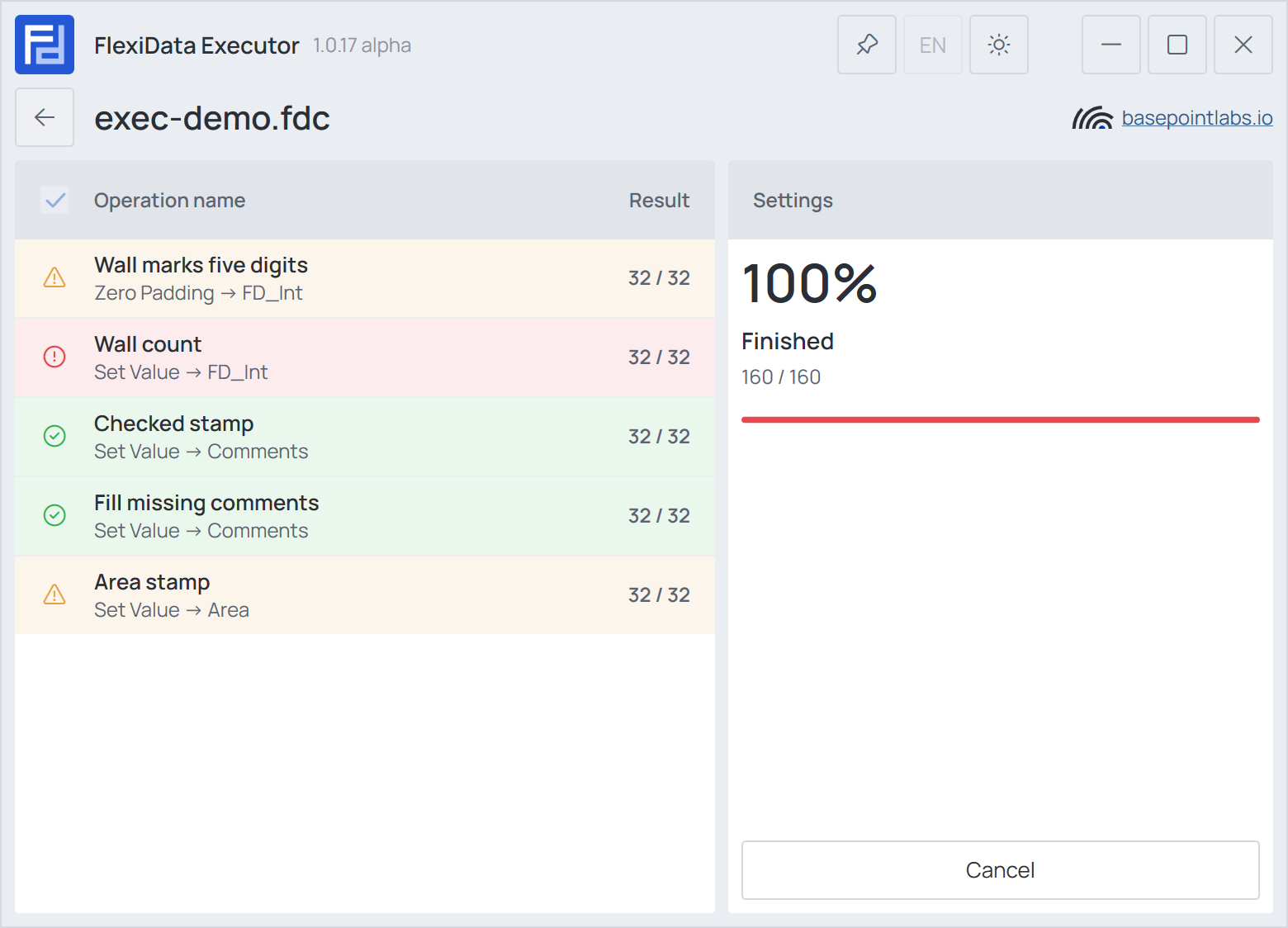
The Configurator writes the rules, the Executor does the work. In Revit you open the .fdc in the
Executor, tick the operations to run and press Run. The Executor applies them one after another
to every element they cover — thousands in a minute — and shows the result of each one, then a report
of what was written and what was not.
One .fdc file, many projects. The file holds rules, not model data. Write your office standard
once and run it on every model that uses the same parameters. One file serves every Revit from 2021
to 2027 — see The .fdc file.
Any parameter the element has. Shared, project, family and built-in parameters all work — see Which parameters an operation can use.
Operations run top to bottom, each on every element before the next starts — so one can build on what another wrote. See Order of operations.
An empty field writes nothing — it clears. See Empty values.
Text values can carry smart tags such as {Element_ID} or {Date_ISO}, filled in per element.
See Smart tags.
A run can be undone in one step. See Safety and undo.
Where to go next: The Configurator shows how an operation is filled in; then pick the operation you need in Operations, or follow a recipe that solves a whole task.