
If Then Else
Tests conditions on the element and writes one value or another. Fire resistance for the structure, a status from a checkbox, a flag on everything that breaks a rule.
Steps
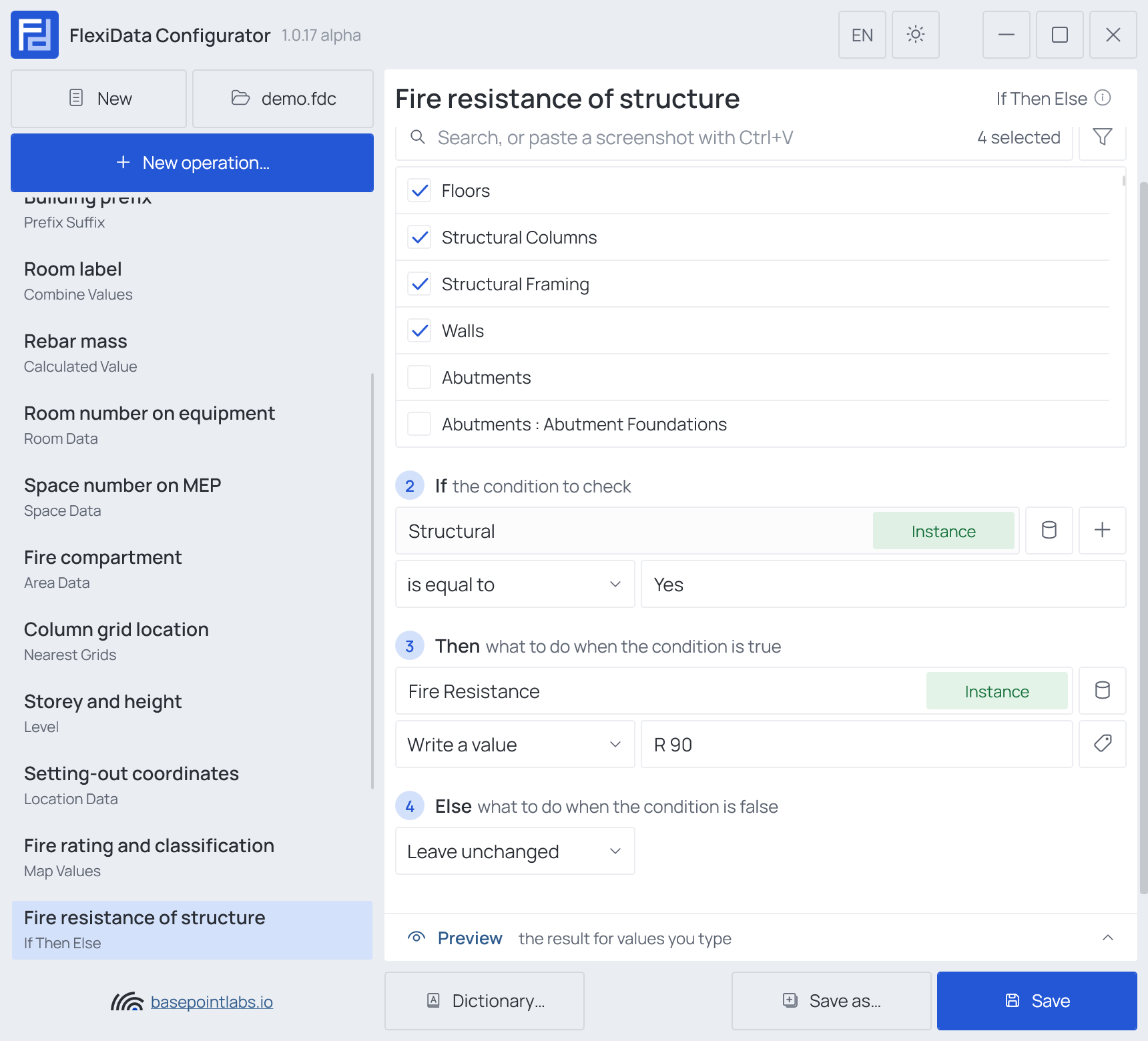
- Categories — which elements: tick the categories, and add a filter if only some of them should take part.
- If — the condition to check: one or more conditions, each a parameter (any parameter), a comparison and a value. With more than one, choose All conditions are met or Any condition is met. Add conditions with +.
- Then — what to do when the condition is true: the target parameter and either Write a value or Leave unchanged.
- Else — what to do when the condition is false: the same choice.
Text comparisons: is equal to, contains, begins with, ends with, their negations, is empty, is not empty. Number comparisons: equal to, not equal to, greater than, greater than or equal, less than, less than or equal.
Example
| Setting | Value |
|---|---|
| Categories | Walls, Floors, Structural Columns, Structural Framing |
| If | Structural · is equal to · Yes |
| Then | Fire Resistance · Write a value R 90 |
| Else | Leave unchanged |
| Element | Structural | Fire Resistance after |
|---|---|---|
| Wall 700112 | Yes | R 90 |
| Wall 700118 | No | unchanged |
| Column 610021 | Yes | R 90 |
Good to know
- Text comparisons ignore upper and lower case.
- A number comparison can carry a unit:
< 2 mworks on a length shown in millimeters. The value read from the element must be a number by the same rule as in Calculated Value;1.OGis text, and a number comparison on text is never true. - Yes/No parameters compare alike in an English and a German Revit.
<clear>as a value empties the target — see Empty values.
Works with
- Parameters: any parameter of the element — shared, project, family or built-in — typed by name, or a built-in one picked from the list; see Which parameters an operation can use.
- Smart tags: in the Then and Else values — see Smart tags.
- Only if empty: tick it for this operation in the Executor's list before a run, and it writes only where the target is still empty.
- Preview: type sample values and see what the operation writes, before Revit — see Preview and Example.
- Filter, Active view, Selection: like every operation — see the filter and Whole model, Active view, Selection.
Used in: Conditional values.