
The Configurator
The Configurator is where operations are written. It runs on its own, without Revit.
How to open
- Configurator on the FlexiData panel of Revit's ribbon, or
- FlexiData Configurator in the Windows Start menu.
The first time it starts, a short tour walks through the window; it does not come back. Only one Configurator runs at a time.
The main window
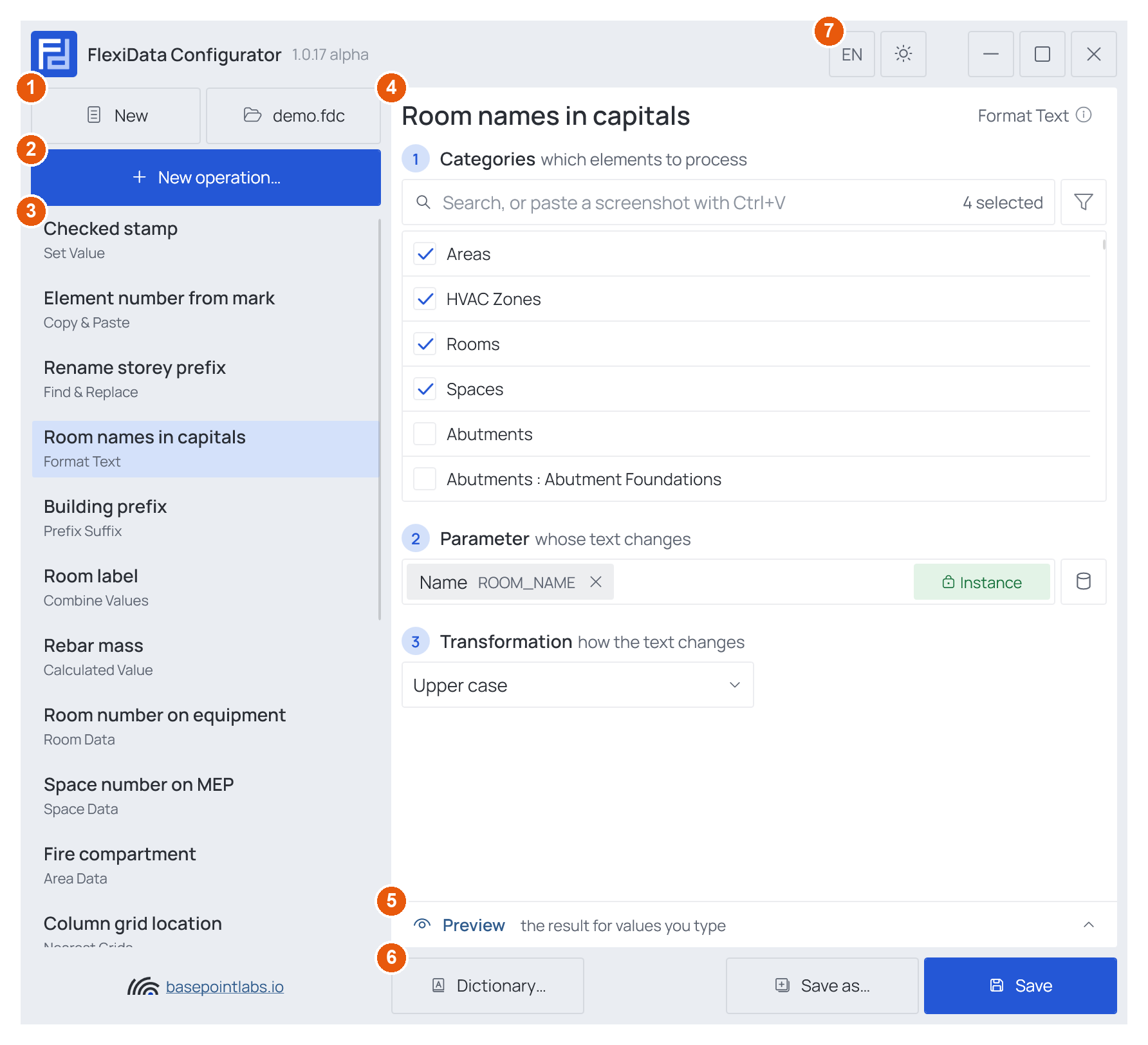
① New and Open ② New operation… ③ operation list ④ operation card with its numbered steps ⑤ Preview strip ⑥ Dictionary…, Save as…, Save ⑦ language and theme switches.
| Area | What it holds | More |
|---|---|---|
| New / open (top left) | New starts an empty file. The second button opens a .fdc file and then shows its name |
The .fdc file |
| New operation… | Adds an operation to the list (Ctrl+N) | New operation |
| Operation list | Every operation of the file, in run order. Each row shows the name and, under it, the operation type | The operation list |
| Operation card | The selected operation: its name, its type with ⓘ for the full description, and its numbered steps | The operation card |
| Bottom bar | Dictionary…, Save as… and Save | The Dictionary |
| Title bar | EN / DE switches the language at once; the sun/moon button switches light and dark | Languages |
Filling in an operation
Each step of the card has a page of its own here:
- Categories — step 1 of every operation
- The filter — narrowing the categories by any parameter
- Which parameters an operation can use — typing a name or picking a built-in one
- Built-in parameters and Smart tags — the two pickers
- Preview and Example — trying an operation before Revit
What each operation's own steps mean is on its page under Operations.
Saving
Save (Ctrl+S) writes the .fdc file; Save as…
(Ctrl+Shift+S) writes a copy under a new name. A file saved by a newer
FlexiData than yours is flagged when it opens — see The .fdc file.
All dialogs the Configurator opens are listed in Screens and dialogs.