
Built-in parameters
Every parameter Revit itself defines — Mark, Comments, Number, Fire Rating, Type Mark and some 3,500 more — to pick one into a parameter field.
How to open
The database button at the end of any parameter field.

What's in it
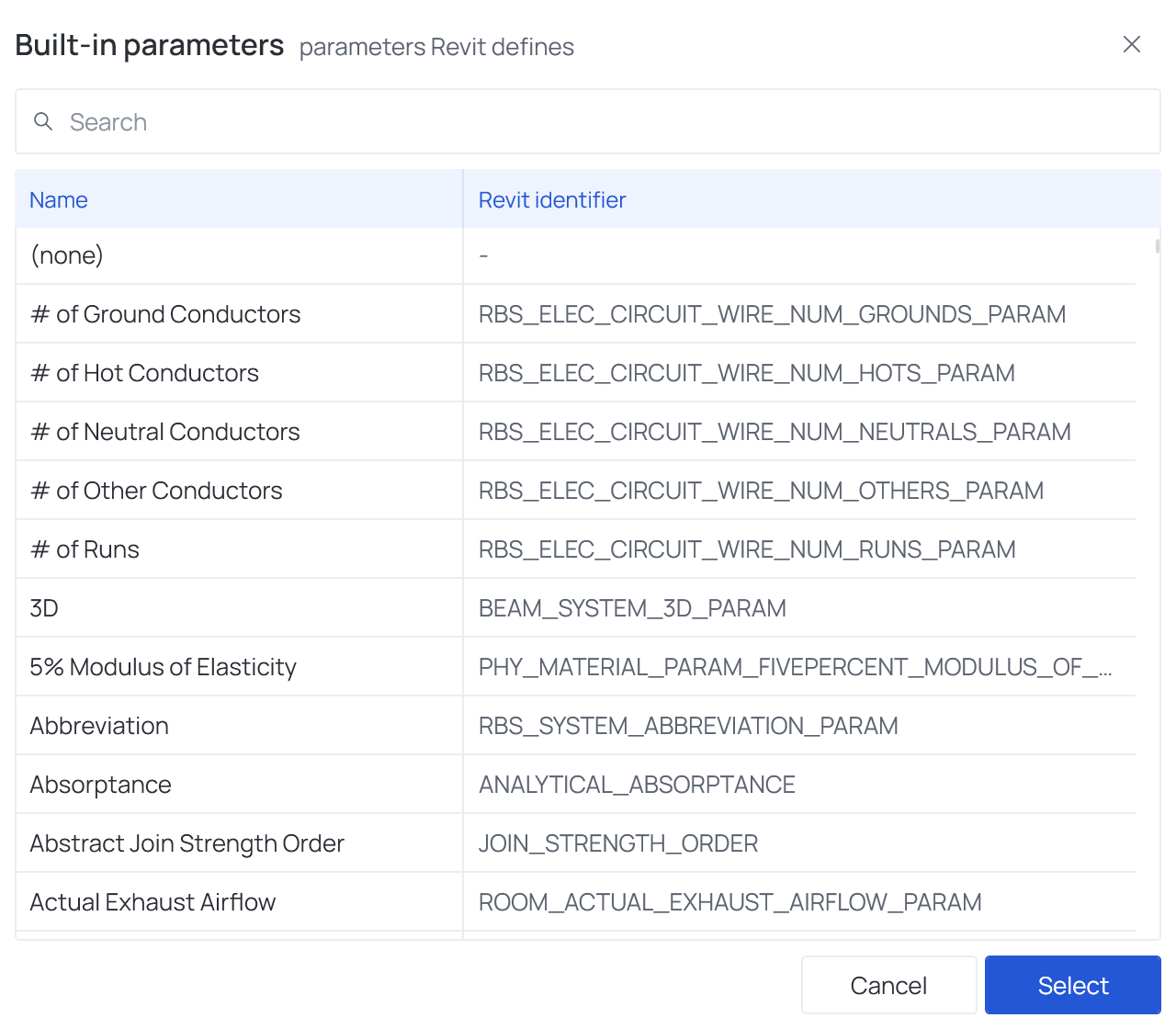
| Part | What it does |
|---|---|
| Search | Matches the start of any word in either column: num finds Number as well as ROOM_NUMBER |
| Name | The name Revit shows in the Properties palette |
| Revit identifier | Revit's internal name, e.g. ALL_MODEL_MARK |
| Pinned rows | The parameters this field is used for most — Family Name, Type Name, Level and the like in a filter. They stay on top while you search |
| Select | Puts the parameter into the field as a chip — its name and its identifier — with ✕ to go back to typing. A double-click does the same |
Why pick rather than type
A built-in parameter chosen here is found in Revit by its identifier, so the file works whatever
language Revit runs in. Typing Mark by hand finds the parameter only in a Revit that calls it Mark —
a German Revit calls it Kennzeichen. Shared, project and family parameters are not in the list:
type their name — see Which parameters an operation can use.
Good to know
- Where an operation can only write instance parameters, only instance parameters are listed.
- The list holds the parameters of every Revit from 2021 to 2027. A parameter that the running Revit does not have — one Revit 2025 or later added, or one Revit 2027 dropped — is named by the Executor's configuration check, and the run writes nothing to it and goes on.