
Recipes
Real tasks, each solved by a short chain of operations. Every recipe gives the operations in the order they sit in the list, their settings, and the values a few elements end up with.
Doors take the number of the room they open into
Task: every door gets a number made of the room it leads into: D-1.04. Exterior doors, with
no room on that side, get D-EXT. The numbers must stay right when rooms are renumbered, so the
configuration is run again before each issue.
Operations, in this order:
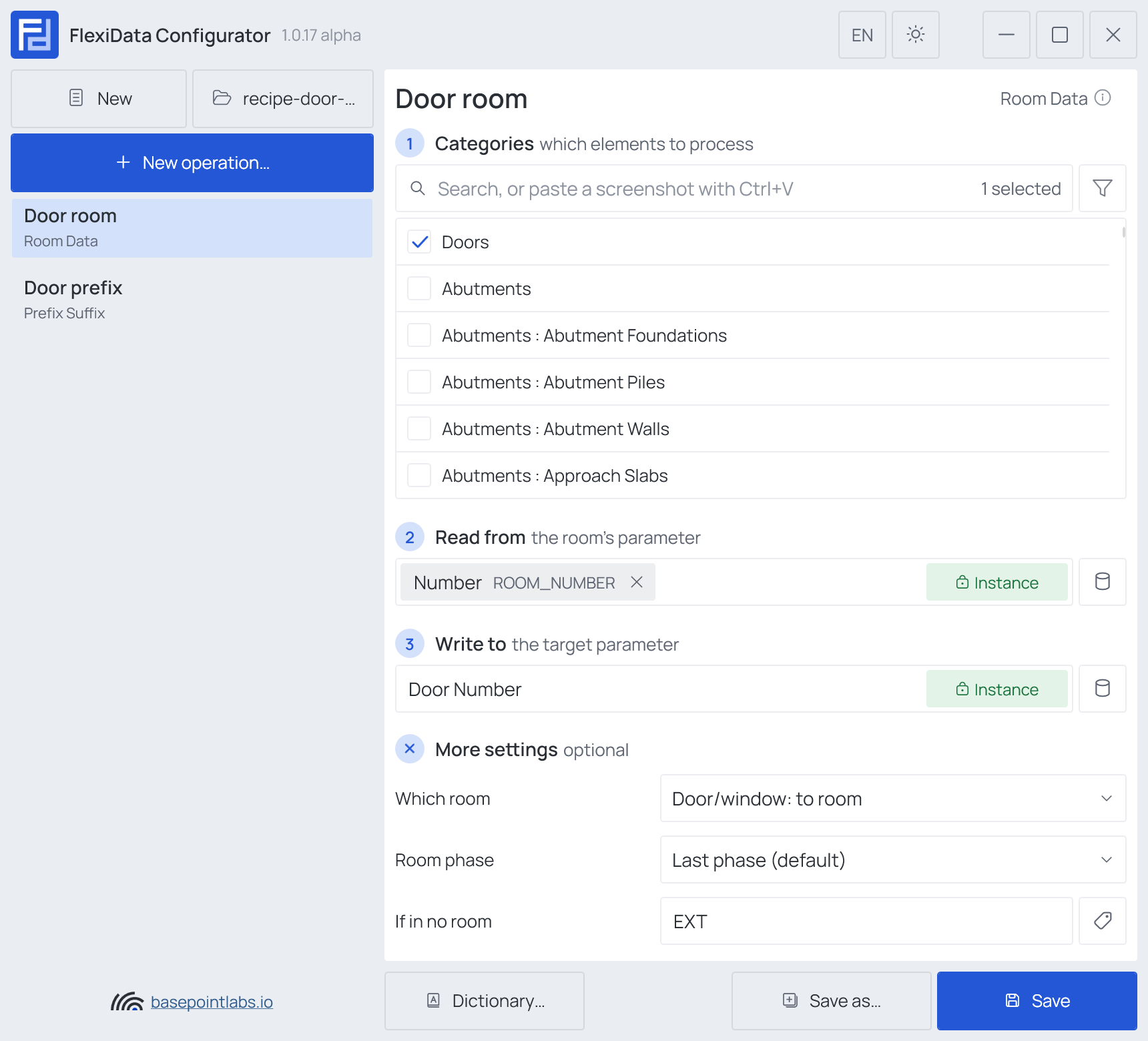
1 · Room Data — Door room
| Setting | Value |
|---|---|
| Categories | Doors |
| Read from | Number |
| Write to | Door Number (shared, Instance) |
| More settings → Which room | Door/window: to room |
| More settings → If in no room | EXT |
2 · Prefix Suffix — Door prefix
| Setting | Value |
|---|---|
| Categories | Doors |
| Parameter | Door Number |
| Prefix | D- |
| More settings → Skip existing prefix/suffix | on (the default) |
Result:
| Door | To Room | Door Number after operation 1 | after operation 2 |
|---|---|---|---|
| 501230 | 1.04 Office |
1.04 |
D-1.04 |
| 501244 | 1.07 Kitchen |
1.07 |
D-1.07 |
| 501301 | (none — exterior) | EXT |
D-EXT |
Running it again after room 1.04 became 1.12: operation 1 writes 1.12, operation 2 makes
it D-1.12. Doors whose room did not change end up exactly as they were.
Why it works:
- The order matters. Room Data first replaces the whole value with the current room number; Prefix
Suffix second adds
D-to it. The other way round, the prefix would be added and then overwritten. - Skip existing prefix/suffix stops
D-from being added twice if Prefix Suffix ever runs on its own. - To room follows the way each door was placed in Revit. If your doors are placed the other way, use from room. Check a few before running on the whole model.
Variations:
- Two doors into the same room get the same number. To tell them apart, add a
Unique Identifier that numbers doors into a second
parameter, restarting for each value of
Door Number, and join the two with Combine Values:D-1.04-1,D-1.04-2. - Want the room name too? Replace operation 2 with Combine Values.
Grid location on columns
Task: every structural column carries its grid location, B/3, for the column schedule and for
the site. Columns sitting off a grid also show by how much.
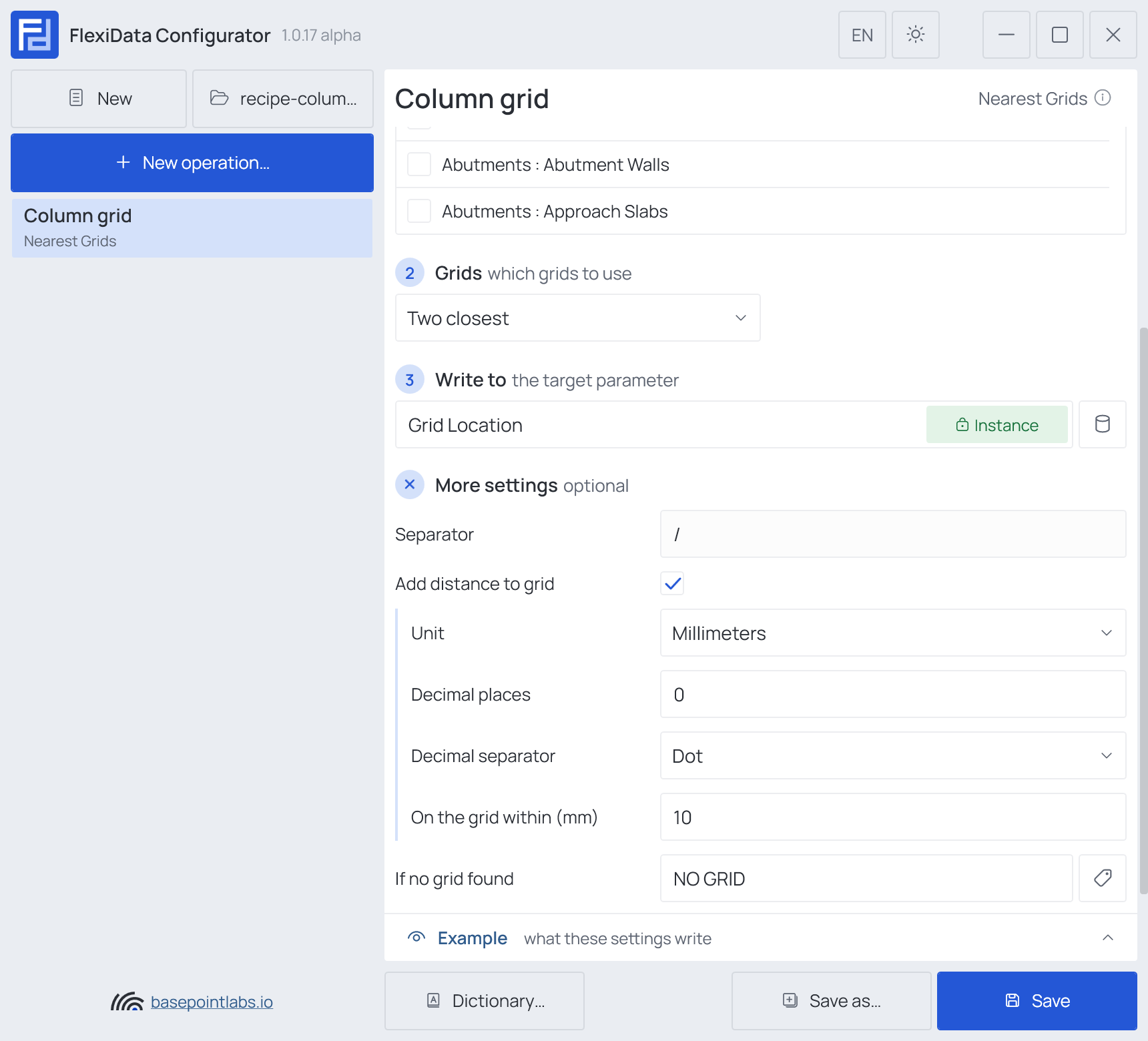
1 · Nearest Grids — Column grid
| Setting | Value |
|---|---|
| Categories | Structural Columns |
| Grids | Two closest |
| Write to | Grid Location (shared, Instance) |
| More settings → Add distance to grid | on, millimeters, 0 decimal places |
| More settings → If no grid found | NO GRID |
Result:
| Column | Position | Grid Location |
|---|---|---|
| 610021 | on B and 3 | B/3 |
| 610022 | on C, 350 mm below 3 | C/3-350 |
| 610040 | outside the grid | NO GRID |
Why it works: a column within the on-grid tolerance gets just the grid name, so the common case stays short and only the exceptions carry a distance. Moved columns get the new value on the next run.
Unique numbers per level
Task: doors are numbered per storey in reading order: L00-001, L00-002, … then L01-001 on
the next floor.
1 · Level — Door storey
| Setting | Value |
|---|---|
| Categories | Doors |
| Write to | Storey (shared, Instance) |
| More settings → If on several levels | Bottom level |
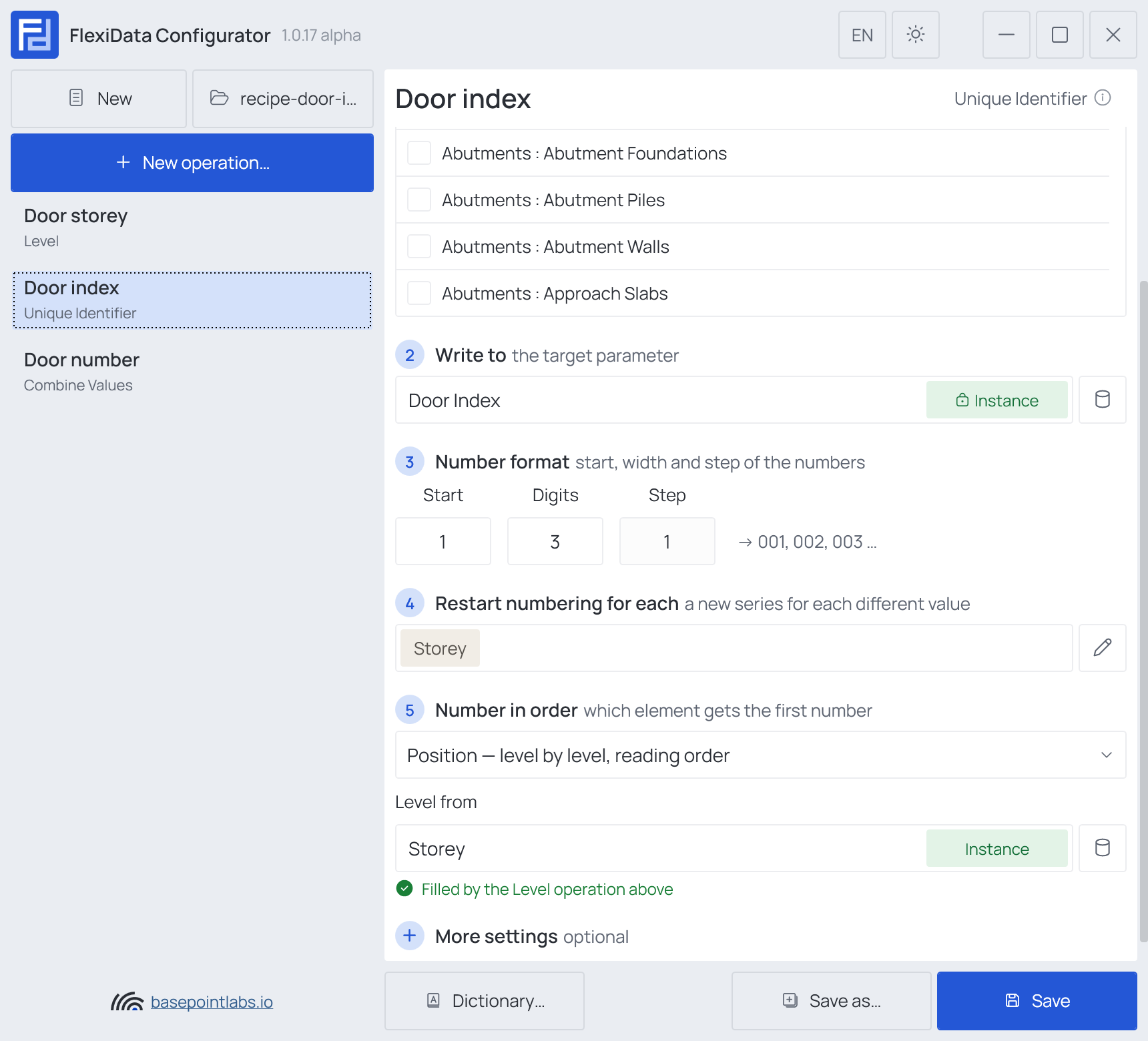
2 · Unique Identifier — Door index
| Setting | Value |
|---|---|
| Categories | Doors |
| Write to | Door Index (shared, Instance) |
| Number format | Start 1, Digits 3, Step 1 |
| Restart numbering for each | Storey |
| Number in order | Position — level by level, reading order, Level from Storey |
3 · Combine Values — Door number
| Setting | Value |
|---|---|
| Categories | Doors |
| Sequence | Storey with suffix -, then Door Index |
| Write to | Mark |
Result:
| Door | Storey | Door Index | Mark |
|---|---|---|---|
top left on L00 |
L00 |
001 |
L00-001 |
| next to it | L00 |
002 |
L00-002 |
top left on L01 |
L01 |
001 |
L01-001 |
Why it works: operation 1 gives every door a reliable storey, operation 2 uses it both to restart the series and to order by level, and operation 3 builds the final mark. Each operation writes its own parameter, so running the file again gives the same marks.
Variation: once the marks are issued, turn on Continue numbering in operation 2 — new doors get the next free number and existing ones keep theirs.
Classification codes from a CSV
Task: wall types get a Uniclass code and title from the office classification list, kept in Excel.
1 · Map Values — Uniclass
| Setting | Value |
|---|---|
| Categories | Walls |
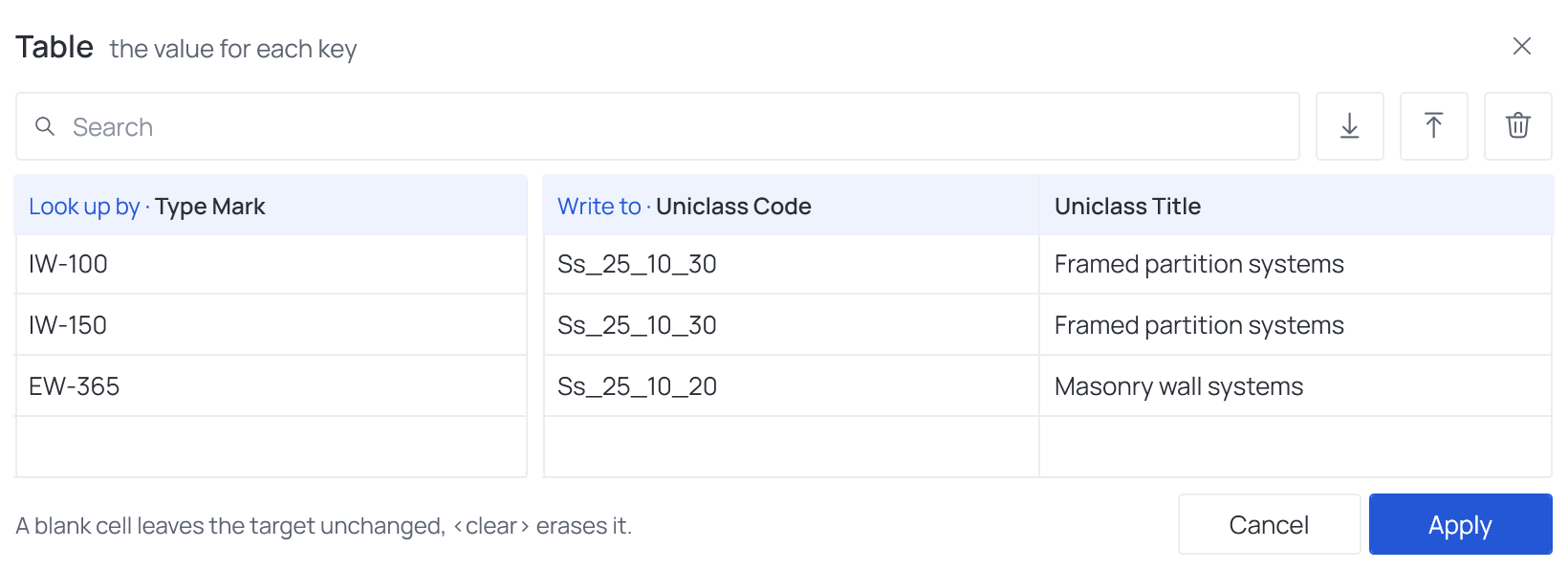
| Look up by | Type Mark (Type) |
| Table | imported from walls-uniclass.csv |
| Write to | Uniclass Code (Type), Uniclass Title (Type) |
| More settings → If no row matches | Write text UNCLASSIFIED |
The CSV — key column first, then one column per target:
Type Mark;Uniclass Code;Uniclass Title
IW-100;Ss_25_10_30;Framed partition systems
IW-150;Ss_25_10_30;Framed partition systems
EW-365;Ss_25_10_20;Masonry wall systems
To get the columns right, open the table, Export the empty one, fill it in Excel and Import it back.

Result:
| Wall type | Type Mark | Uniclass Code | Uniclass Title |
|---|---|---|---|
| Interior 100 | IW-100 |
Ss_25_10_30 |
Framed partition systems |
| Exterior 365 | EW-365 |
Ss_25_10_20 |
Masonry wall systems |
| Old type | X-1 |
UNCLASSIFIED |
UNCLASSIFIED |
Why it works: the key and the targets are all type parameters, so each type is written once.
UNCLASSIFIED makes missing rows visible in a schedule instead of leaving old values in place.
Warning
Keys are compared exactly: iw-100 does not find IW-100.
Conditional values
Task: every room gets its occupant load — area divided by 10 m² per person, rounded to whole people — and rooms above 60 people are flagged as needing a second exit.
1 · Calculated Value — Occupant load
| Setting | Value |
|---|---|
| Categories | Rooms |
| Variables | A → Area |
| Expression | A / 10 |
| Write to | Occupant Load (shared, Number) |
| More settings | Source unit Meters, Rounding Multiple 1 |
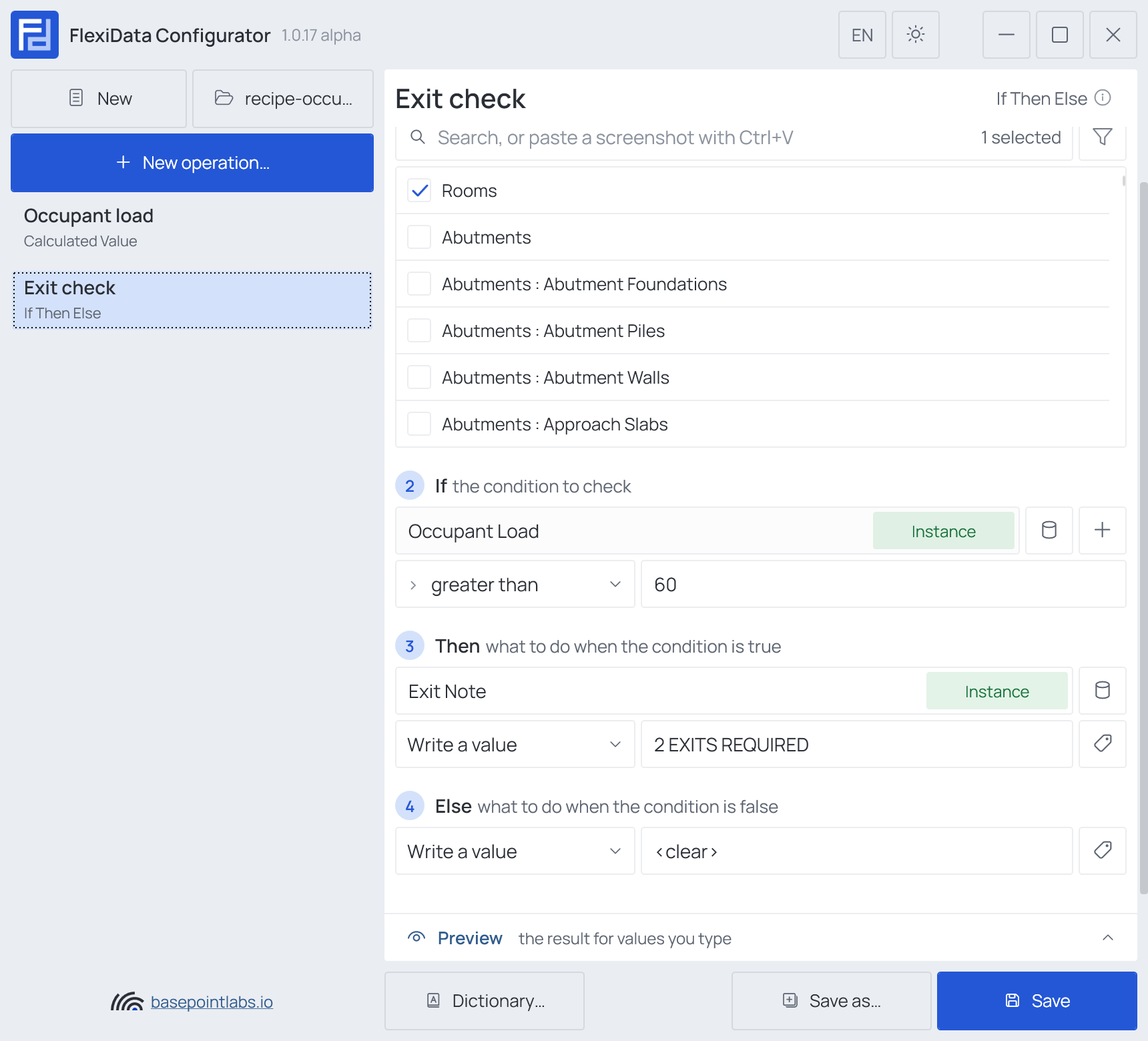
2 · If Then Else — Exit check
| Setting | Value |
|---|---|
| Categories | Rooms |
| If | Occupant Load · greater than · 60 |
| Then | Exit Note · Write a value 2 EXITS REQUIRED |
| Else | Write a value <clear> |
Result:
| Room | Area | Occupant Load | Exit Note |
|---|---|---|---|
1.04 Office |
24 m² |
2 |
(empty) |
0.01 Hall |
742 m² |
74 |
2 EXITS REQUIRED |
Why it works: the calculation runs first and writes a number; the condition reads that number on
the same run. <clear> in Else removes an old note from a room that has become smaller.
Warning
Multiple rounds to the nearest multiple, not up: 24.4 people become 24. For a strict
round-up, add a safety margin to the expression, e.g. A / 10 + 0.49.
Stray elements onto the right worksets
Task: doors and furniture that ended up on Workset1 are moved onto A-Doors and
I-Furniture. Elements already placed elsewhere on purpose stay where they are.
1 · Move to Workset — Doors to A-Doors
| Setting | Value |
|---|---|
| Categories | Doors |
| Filter | Workset · is equal to · Workset1 |
| Move to | Name is equal to A-Doors |
2 · Move to Workset — Furniture to I-Furniture
| Setting | Value |
|---|---|
| Categories | Furniture, Furniture Systems |
| Filter | Workset · is equal to · Workset1 |
| Move to | Name begins with I-Furn |
Result:
| Element | Workset before | Workset after |
|---|---|---|
| Door 501230 | Workset1 |
A-Doors |
| Door 501244 | A-Doors-Fire |
A-Doors-Fire (filter skips it) |
| Desk 412003 | Workset1 |
I-Furniture |
Why it works: the filter limits each operation to elements still on the default workset, so deliberate exceptions are not touched.
Warning
The filter compares the workset name exactly, upper and lower case included; the Move to
rule ignores case. Name begins with I-Furn must match only one workset, or nothing is moved.