
The operation card
Every operation, whatever it does, is filled in on the same card on the right of the Configurator's window. Once you know one card, you know them all.
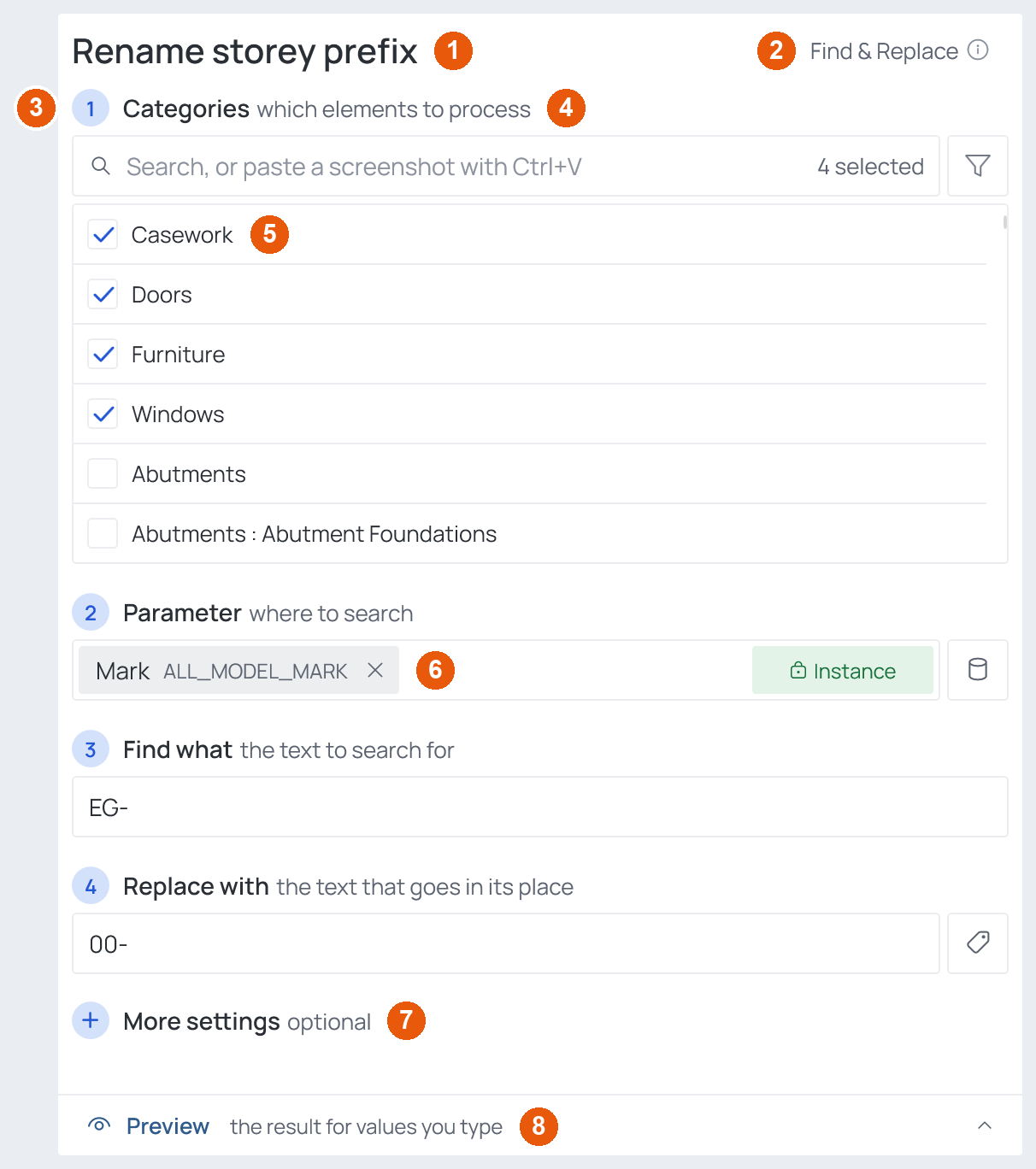
① Name — your own name for the operation, shown in the list on the left. Double-click it to rename. ② Type and ⓘ — which of the 19 operations this is; ⓘ opens its full description. ③ Numbered steps — what the operation needs, in the order it uses them. Step 1 is always Categories; the last one is usually the parameter that is written. ④ Step description — the gray words after a step's title say what goes there: which elements to process, the target parameter, the text to search for. ⑤ Parameter field — a parameter's name, typed or picked, with its Instance / Type tag and the buttons that help fill it — see Elements of the interface. ⑥ More settings — the options rarely needed, folded until you click it. Each operation page describes its own under More settings. ⑦ Preview or Example — type sample values and see what the operation would write, before Revit — see Preview and Example. Not every operation has one.
The three questions
Every card answers the same three questions:
| Question | Where |
|---|---|
| Which elements? | Step 1 Categories, narrowed by an optional filter |
| What value? | The operation's own steps: a fixed value, a source parameter, a table, the room… |
| Into which parameter? | The step usually called Write to — or Parameter, when the operation changes the value already there, as Find & Replace or Format Text do |
When something is missing
The Configurator checks every operation when you save. One that cannot run yet — no category ticked, no target parameter — stops the save, gets an amber warning in the list, and the fields it is missing are framed red, with the reason under them — see Something missing. The Executor checks the same things again before a run, against the model itself — see The configuration check.