
Map Values
Looks each element up in a table and writes what the matching row says. Classification codes from type names, fire ratings from wall types, German names from English ones — any "if it is this, write that" list.
Steps
- Categories — which elements: tick the categories, and add a filter if only some of them should take part.
- Look up by (any parameter) — the key parameters to match. Add more with + and their values are combined, in order, into one key:
Level+Department→ one row per pair. - Table — the value for each key. The pencil button beside the row count opens the table.
- Write to — the target parameters, one or more. Each gets its own column in the table, so one row can fill several parameters at once.
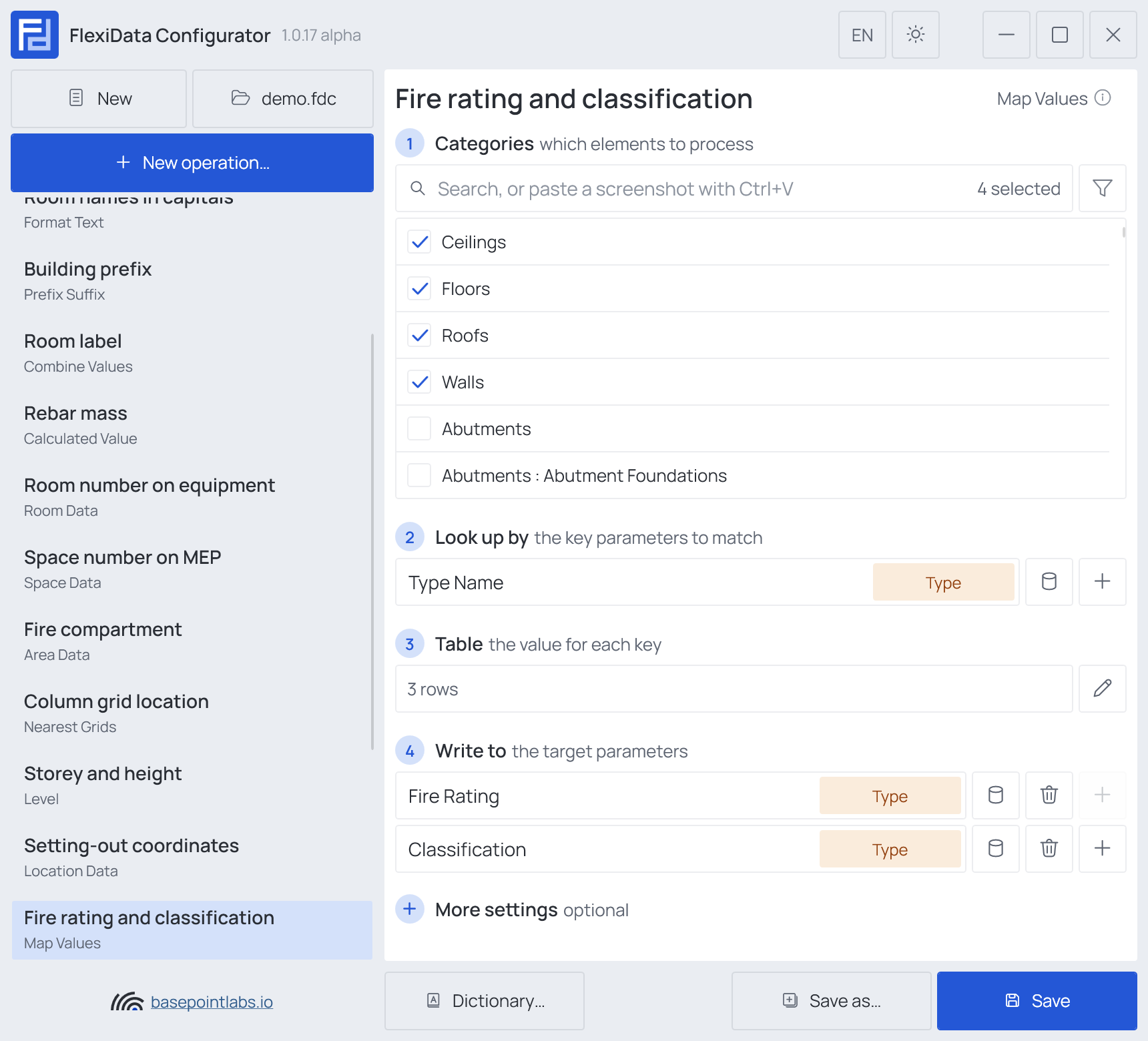
Example
| Setting | Value |
|---|---|
| Categories | Walls, Floors, Roofs, Ceilings |
| Look up by | Type Name |
| Write to | Fire Rating, Classification |
The table:
| Look up by · Type Name | Write to · Fire Rating | Classification |
|---|---|---|
IW 100 GK |
EI 30 |
Ss_25_10_30 |
IW 150 GK 2x |
EI 90 |
Ss_25_10_30 |
AW 365 MW |
REI 90 |
Ss_25_10_20 |
| Wall type | Fire Rating after | Classification after |
|---|---|---|
IW 150 GK 2x |
EI 90 |
Ss_25_10_30 |
IW 125 GK (not in the table) |
unchanged | unchanged |
Table
The pencil button in step 3 opens Table — the value for each key, under the same name as the step. What a
blank cell does stands under the table: it leaves the target unchanged, and <clear> erases it.

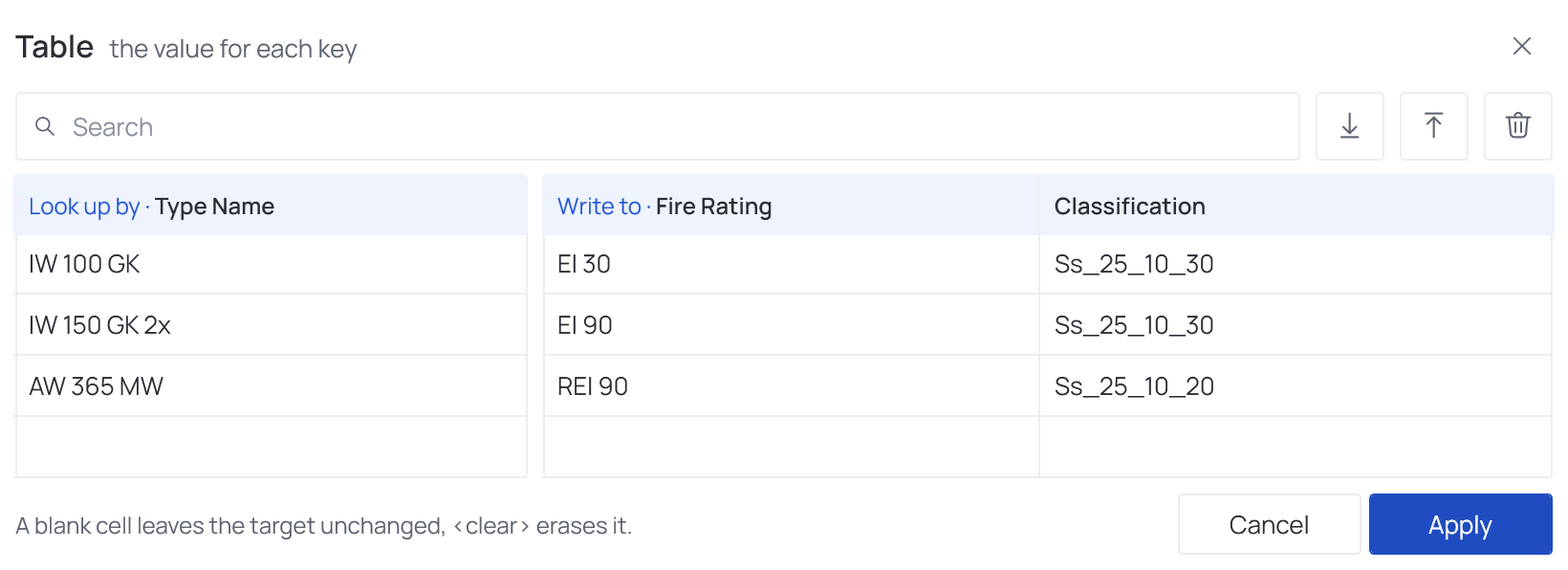
The Look up by columns and the Write to columns stand as two tables side by side; a row of one belongs to the same row of the other.
- Search shows only the rows with a cell containing what you type.
- Import (arrow down) reads a CSV file: key columns first, then target columns, separated by commas, semicolons or tabs. A first row that repeats the column headers is skipped. The import report lists any rows it could not take.
- Export (arrow up) writes the table out the same way. The quickest way to start a long table is to export the empty one, fill it in Excel and import it back — or copy the cells in Excel and paste them into the table with Ctrl+V.
- More (…) → Clear all entries empties the table.
- Add a row under the table adds an empty row and puts its first cell in edit.
- Apply keeps your changes, Cancel forgets them.
- An empty cell leaves that target unchanged for the row;
<clear>in a cell erases it — see Empty values.
Keys
Several keys. With two or more Look up by parameters, the table has one key column for each,
and a row matches only when every key column matches. Level + Department → L01 · Admin
finds a different row from L01 · Lab.
Number keys. A key that is a number matches regardless of how it is shown: 305 finds an element
showing 305.0 mm, and 5 Stk finds a row 5. A unit written on both sides must be the same unit —
1 m does not find 1 mm. A code with letters, such as 1.OG or 10a, is compared as text.
Yes/No keys match Yes, Ja or 1 in any case.
The import report. After Import…, a line under the table says what happened — Rows read,
Rows dropped, the delimiter, whether a header line was skipped — and Not imported lists each
dropped line with its reason: no key, too few columns, or a key that appears again further down —
the last line with that key is kept, the earlier ones are dropped.
More settings

If no row matches: Leave unchanged (the default), Write text, or Clear — see Empty values. Elements left unchanged are not counted as problems in the run report.
Warning
Text keys are compared exactly, including upper and lower case: IW 100 gk does not find the
row IW 100 GK. Spaces at the start and end are ignored.
Works with
- Parameters: any parameter of the element — shared, project, family or built-in — typed by name, or a built-in one picked from the list; see Which parameters an operation can use.
- Smart tags: in table cells and in the Write text value — see Smart tags.
- Only if empty: tick it for this operation in the Executor's list before a run, and it writes only where the target is still empty.
- Filter, Active view, Selection: like every operation — see the filter and Whole model, Active view, Selection.
Used in: Classification codes from a CSV.