
The filter
Categories are the coarse cut; the filter narrows them down by any parameter — built-in, shared, project or family, instance or type.
How to open
The funnel button beside the category search (Filter by…).

What's in it
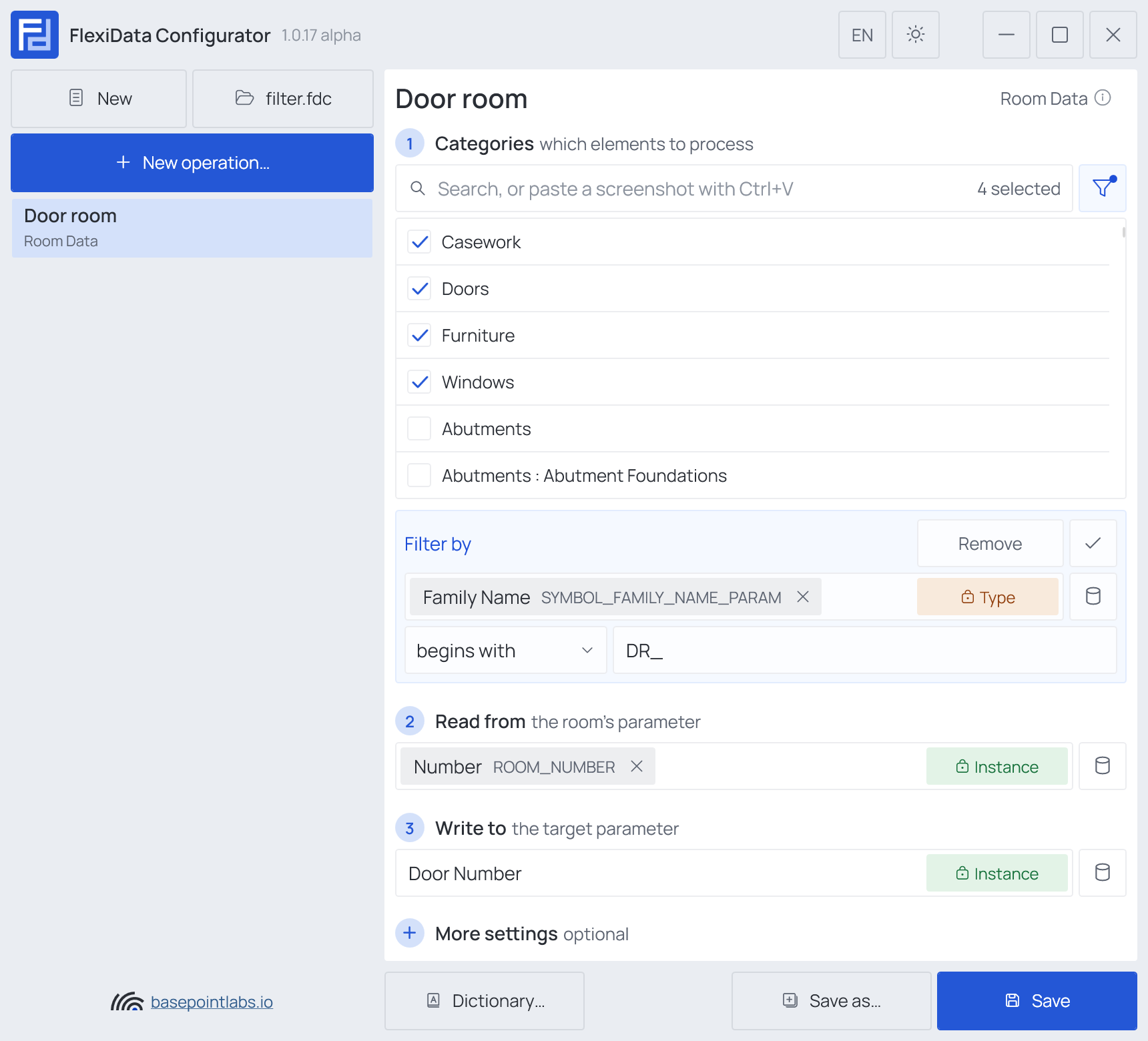
Filter by has three fields:
- Parameter — any parameter, typed by name or picked with the database button (built-in ones). The parameters filters use most — Family Name, Type Name, Workset, Level, Phase Created, Design Option, Mark, Type Mark, Comments, Type Comments, Description, Assembly Code, Keynote, System Name and others — are pinned at the top of the built-in list.
- Condition — for text: begins with, ends with, contains, is equal to, does not contain, is not equal to, is empty, is not empty; for numbers: equal to, not equal to, greater than, greater than or equal, less than, less than or equal.
- Value — the text or number to compare with. Hidden for is empty and is not empty.
The ✓ closes the editor; the filter then reads as one line under the list —
Filter: Family Name begins with "Basic" — with Edit and a button to remove it. A dot on the
funnel shows that an operation has a filter.
Examples
| To work on… | Parameter | Condition | Value |
|---|---|---|---|
| Doors of the office's own families | Family Name | begins with | DR_ |
| Walls of one storey | Level | is equal to | L01 |
| Elements still on the default workset | Workset | is equal to | Workset1 |
| Doors nobody has marked yet | Mark | is empty | |
| Thick walls only (project in millimeters) | Width | greater than or equal | 200 |
Good to know
- One filter per operation. For two conditions, use two operations, or turn the second condition into an If Then Else.
- Number conditions compare in the project's display units: in a project set to millimeters,
200means 200 mm. A unit may follow the number but is not converted, so write the value in the project's own unit. An element whose value is not a number does not pass — not even not equal to. - Upper and lower case: a filter on a parameter value compares case exactly; Family Name and Type Name ignore case on Revit 2023 and later — see Upper and lower case.
- When the operation writes a type parameter, Workset and Level are not offered: a type has neither.