
Find & Replace
Replaces a piece of text inside a parameter's value. Fixing a typo in hundreds of marks, renaming a prefix after a standard changed, reordering parts of a code with a regular expression.
Steps
- Categories — which elements: tick the categories, and add a filter if only some of them should take part.
- Parameter (any parameter) — where to search; the result is written back into it.
- Find what — the text to search for.
- Replace with — the text that goes in its place. Every occurrence is replaced.
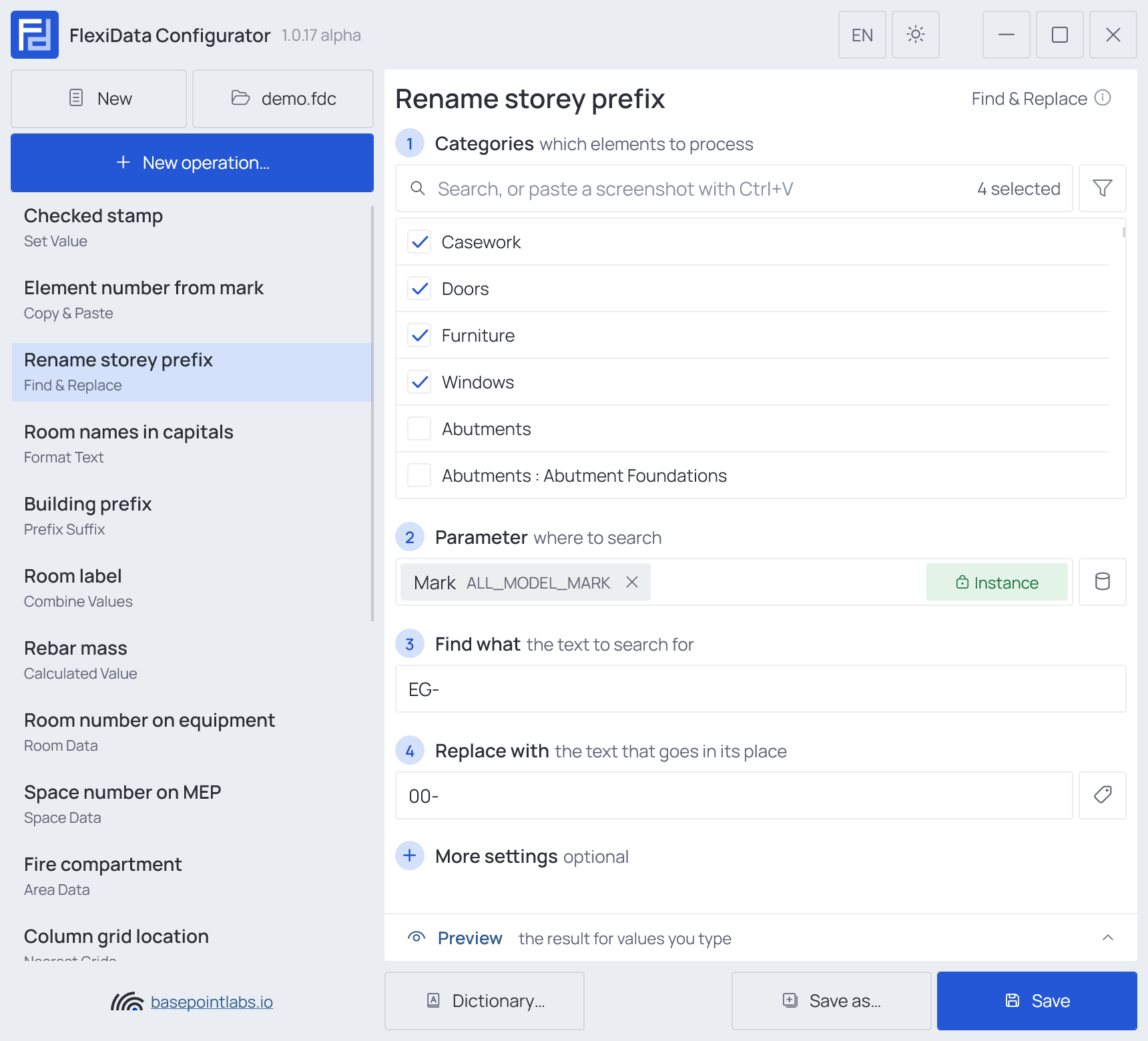
Example
| Setting | Value |
|---|---|
| Categories | Doors, Windows, Casework, Furniture |
| Parameter | Mark |
| Find what | EG- |
| Replace with | 00- |
| Mark before | Mark after |
|---|---|
EG-012 |
00-012 |
OG1-004 |
unchanged |
More settings

Use regex turns Find what into a regular expression and lets Replace with use its groups:
Find what ^W-(\d+)_(\w+)$, Replace with $2-$1 turns W-12_A into A-12. With a regular expression,
If no match decides what happens to a value the expression does not match: Keep original,
Clear value or Custom value.
Warning
Find what is case-sensitive: eg- does not find EG-.
Warning
Not safe to run twice if the Replace with text contains the Find what text: replacing A with AA adds another A on
every run.
Works with
- Parameters: any parameter of the element — shared, project, family or built-in — typed by name, or a built-in one picked from the list; see Which parameters an operation can use.
- Smart tags: in Replace with, and in the Custom value for If no match — see Smart tags.
- Only if empty: not offered — the operation changes the value already there.
- Preview: type sample values and see what the operation writes, before Revit — see Preview and Example.
- Filter, Active view, Selection: like every operation — see the filter and Whole model, Active view, Selection.