
The report
What the run did: what was written, what was not and why.
When it appears
When a run ends. Closing it keeps the run.
The short report
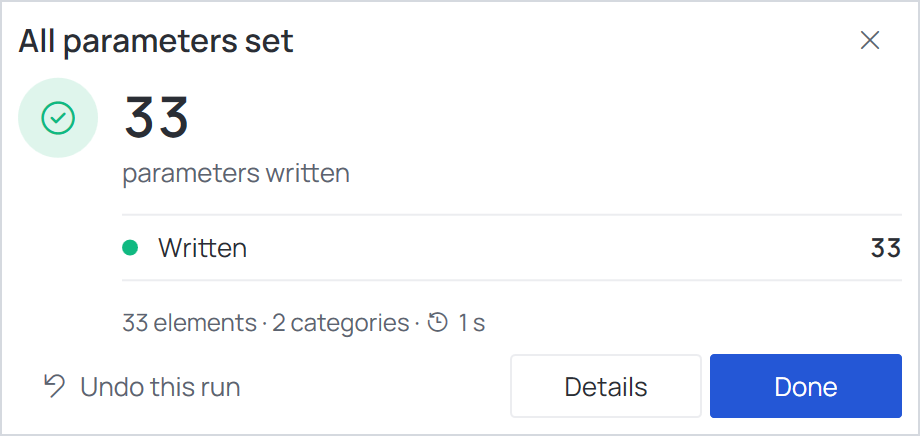
All parameters set — when nothing needs attention: how many parameters were written, how many were already correct, and Details to see more.
The full report
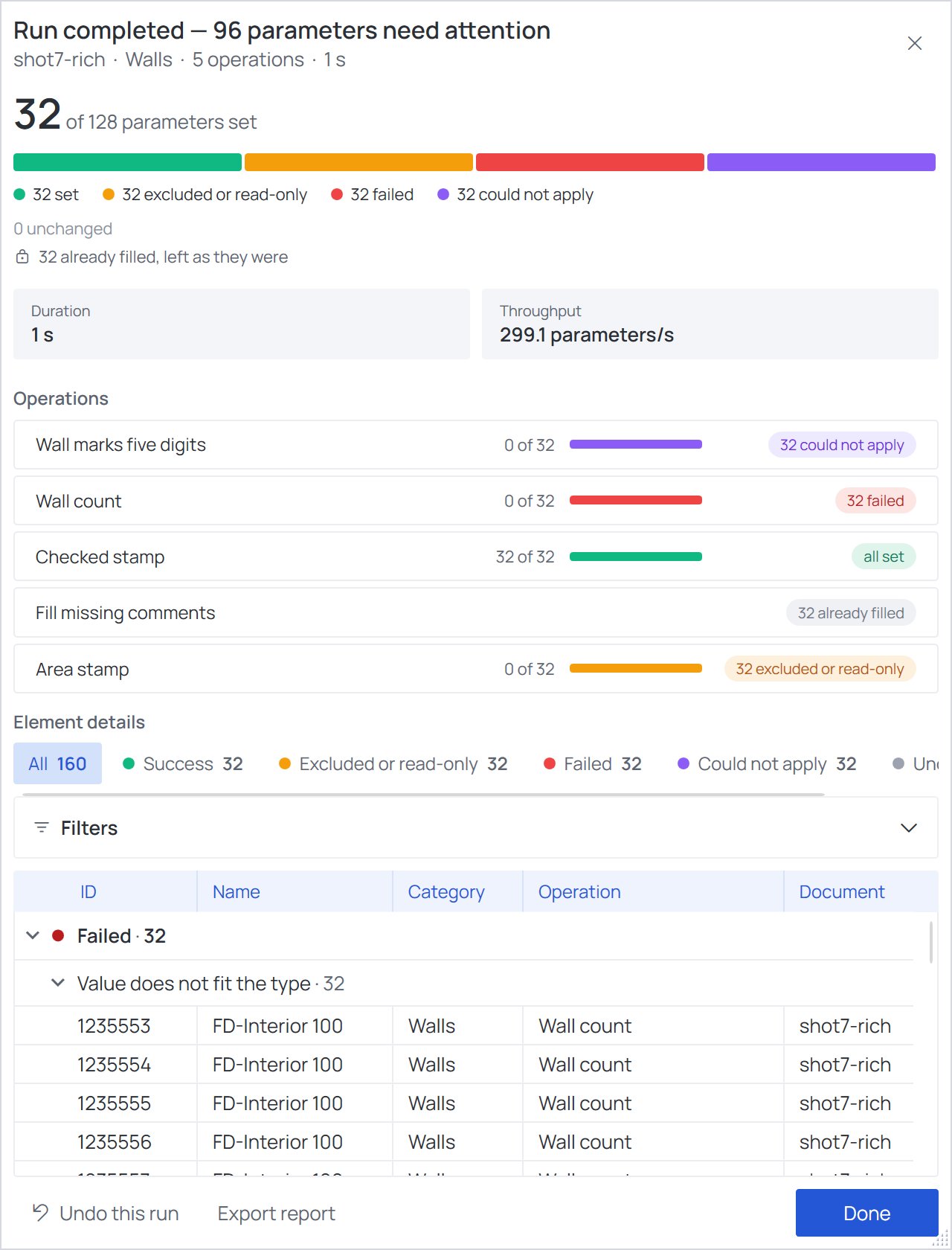
Run completed — N parameters need attention — or Details from the short report:
| Part | What it shows |
|---|---|
| Outcome bar | One bar and a count per outcome: set, excluded or read-only, failed, could not apply, unchanged. Values that were already right, or already filled with Only if empty, are listed apart — they are not problems |
| Duration / Throughput | How long the run took and how many parameters per second |
| Operations | One row per operation with its own outcome |
| Element details | Every element that was touched, grouped by outcome and then by reason (Value does not fit the type, Target parameter is read-only, Member of a model group…). The chips above filter by outcome; Filters narrows by operation, category, document, element name or ID |
| Documents | With several models: each model's own result |
What the outcomes mean
| Outcome | Meaning | What to do |
|---|---|---|
| set | Written | — |
| excluded or read-only | Skipped on purpose (an Exclusions option, a busy element) or the parameter cannot be written | Check the exclusions, or the parameter |
| failed | Revit refused the value | Usually a value that does not fit the parameter's type — text into a number |
| could not apply | The operation cannot do its job on this element | E.g. Zero Padding on a number parameter, which cannot hold leading zeros |
| unchanged | Left as it was by the rules | Expected for Map Values' Leave unchanged and similar |
Every reason the report can give, with what to do about it, is listed in Report reasons.
Buttons
| Button | What it does |
|---|---|
| Undo this run | Takes back everything the run wrote, in one step. Not offered after Synchronize with Central after the run |
| Export report | Saves the elements that were not written to a CSV file — see below. Appears only when something was not written |
| Open folder | Opens the folder of the exported file |
| Done | Closes the report and keeps the run — it is then a single entry in Revit's Undo list |
Export report writes SkippedElements_<date>_<time>.csv next to the .fdc (in the temp folder if
that folder cannot be written), with the columns ElementId, FamilyName, FamilyTypeName,
Reason, DocumentName, OperationName. Useful for sending a colleague the list of elements they
hold.