
The Dictionary
Your own lists of names and values that the Configurator suggests as you type. Fill it once and stop retyping parameter names.
How to open
Dictionary… at the bottom of the main window.

What's in it
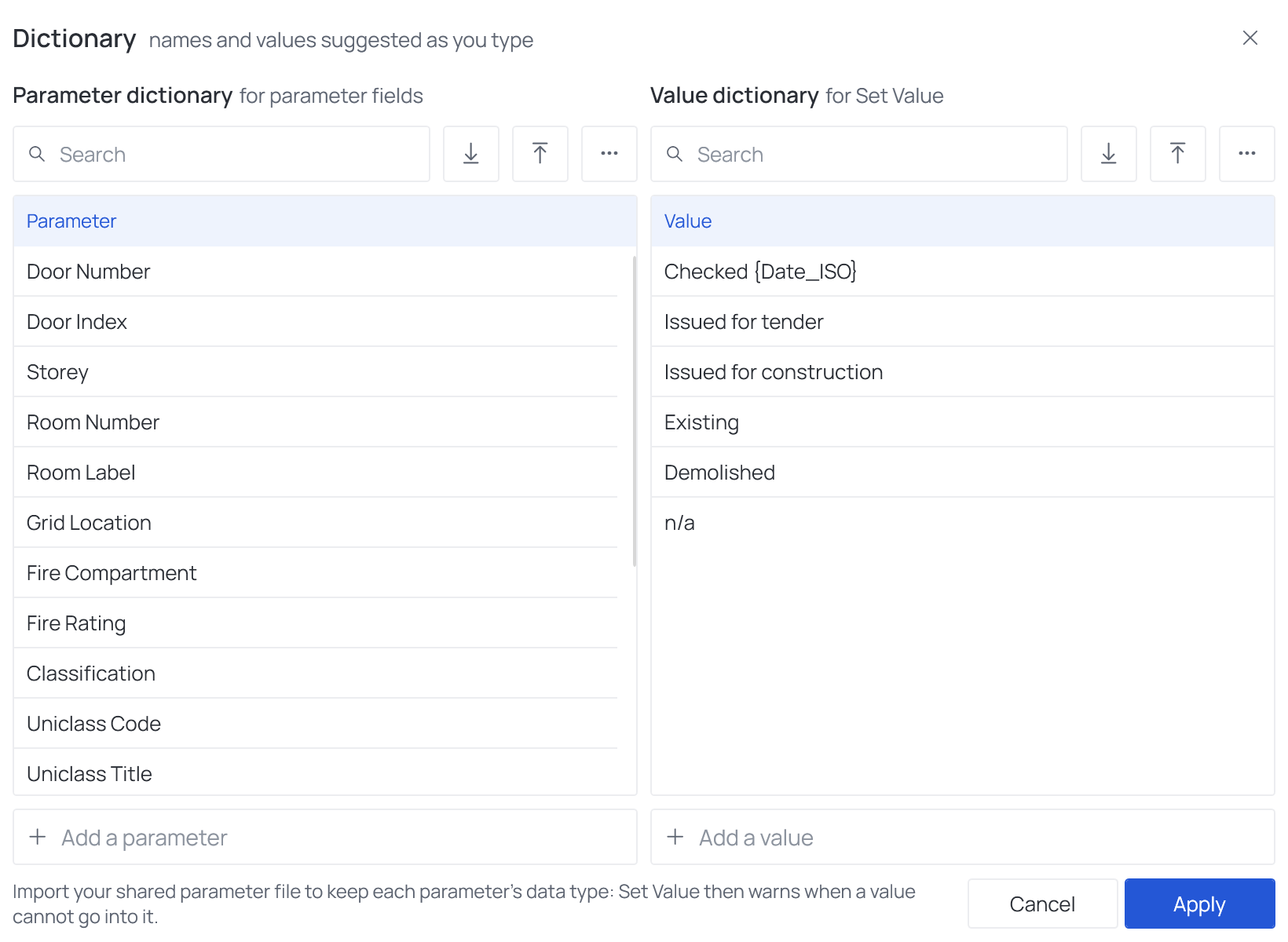
Two independent lists side by side:
| List | Suggested in |
|---|---|
| Parameter dictionary | Every parameter field — targets, sources, keys, filters |
| Value dictionary | The Value field of Set Value |
The two lists are not pairs: each entry is a suggestion on its own.
Filling a list
Each list has its own buttons:
- Import (arrow down) adds the entries of a file and skips those already there:
- a CSV or text file with one entry per line;
- for the parameter dictionary, also a Revit shared parameter file (
.txt) — only the parameter names are taken; - the old two-column
Parameters;Valuesfile — the parameter dictionary takes its first column, the value dictionary its second.
- Export (arrow up) writes the list to a CSV file, to share with colleagues or keep with your standards.
- More options (…): Paste from clipboard — a column copied from Excel, one entry per row — and Clear all entries.
- Add a parameter / Add a value at the bottom of a list: type and press Enter.
- Point at an entry and click ✕ to remove it. Search narrows a long list.
Apply saves both lists; they are loaded every time the Configurator starts. Cancel throws the changes away. The hint beside them repeats the tip below in short.
Good to know
Import your shared parameter file
Names taken from a shared parameter file keep the data type Revit gives them. The Configurator then knows that a parameter is Yes/No or Integer and warns in Set Value when the value you typed cannot go into it, before you ever reach Revit.
- The Dictionary is stored on your computer, not in the
.fdcfile. To give colleagues the same suggestions, Export it and let them Import it.