
Combine Values
Joins the values of several parameters into one. Room number and name into one label, level and mark into a code, a description built from type parameters.
Steps
- Categories — which elements: tick the categories, and add a filter if only some of them should take part.
- Sequence — the parameters to combine, in order. The pencil button opens the list of parts — see Sequence — where each part has its own Prefix and Suffix.
- Write to (any parameter) — the target parameter, which receives the combined value.
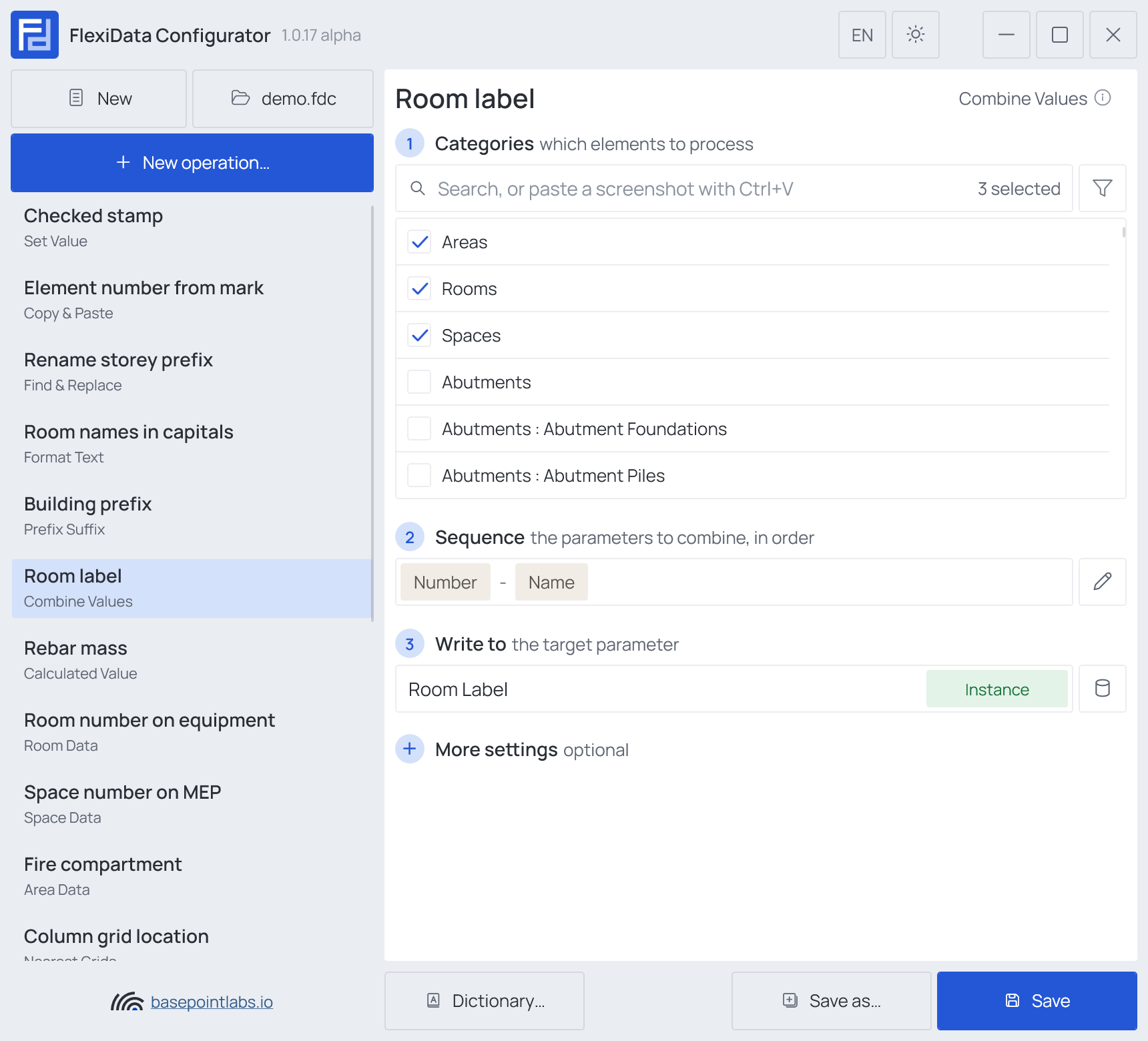
There is no separate separator field — the separator is the suffix of one part.
Example
| Setting | Value |
|---|---|
| Categories | Rooms, Spaces, Areas |
| Sequence | Number with suffix -, then Name |
| Write to | Room Label |
| Number | Name | Room Label after |
|---|---|---|
1.04 |
Office |
1.04 - Office |
1.07 |
(empty) | 1.07 with Skip empty values on, 1.07 - with it off |
A part can be a smart tag instead of a parameter, and a type parameter is read from the element's type.
Sequence
The pencil button at the end of step 2 opens Sequence — the parameters to combine, in order: the list of parts.

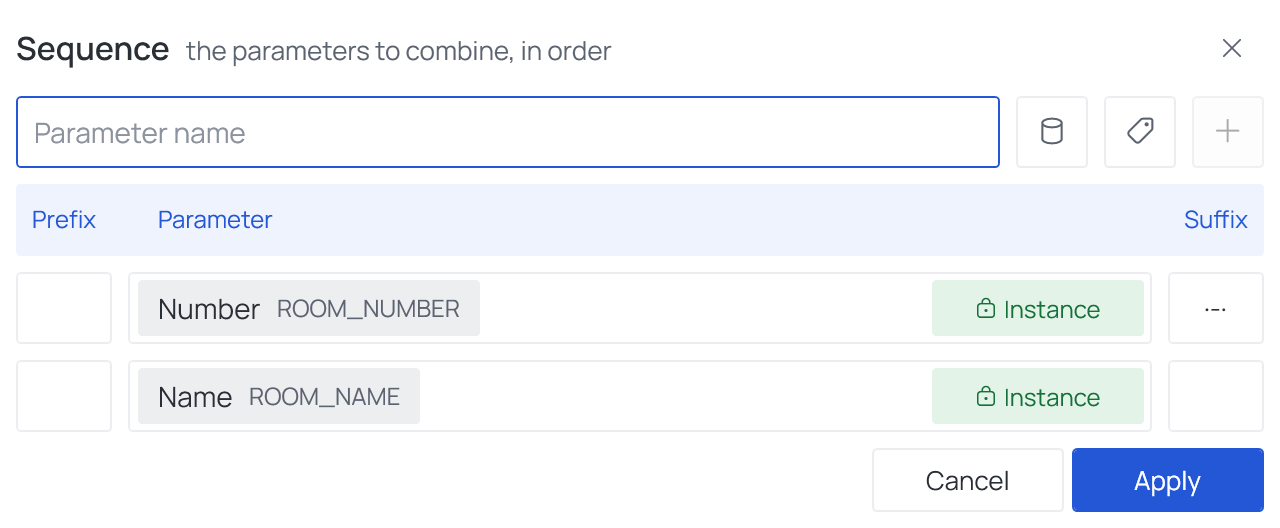
- Type a parameter name in Parameter name and press + (or Enter); the database button picks a built-in parameter, the tag button a smart tag. Once a name is typed, Instance beside it switches to Type.
- Prefix and Suffix are written before and after that part — the
-between number and name in the example is the first part's suffix. - Drag a row to change the order, or press Alt+↑ / Alt+↓. To take a part out, click its row and press Delete, or the bin the + turns into (Remove this parameter).
- Apply keeps the list, Cancel forgets the changes.
More settings

Skip empty values leaves out an empty part together with its text before and after, so no stray separators remain.
Warning
If every part is empty, the target is cleared.
Works with
- Parameters: any parameter of the element — shared, project, family or built-in — typed by name, or a built-in one picked from the list; see Which parameters an operation can use.
- Smart tags: as a part of the Sequence — see Smart tags.
- Only if empty: tick it for this operation in the Executor's list before a run, and it writes only where the target is still empty.
- Filter, Active view, Selection: like every operation — see the filter and Whole model, Active view, Selection.
Used in: Unique numbers per level.