
The run screen
Where a run is put together: which operations, where, with which settings.
How to open
Open a .fdc file from the Executor's start screen.
What's in it
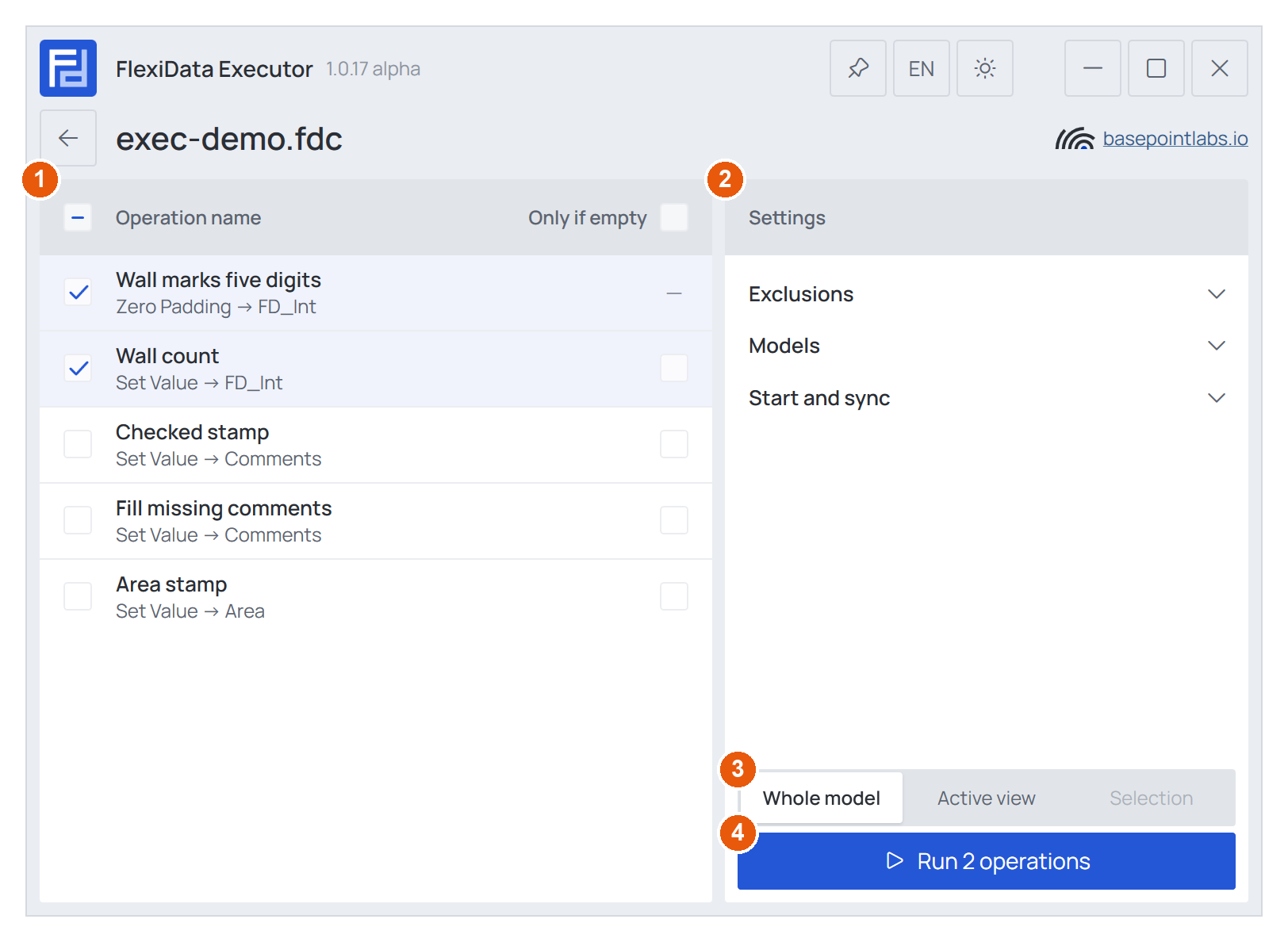
① operations ② Settings ③ scope ④ Run.
① The operations. Every operation of the file, in run order, with its type and target parameter under the name. Tick the ones to run — none is ticked when the file opens. The box in the header ticks or clears all (Ctrl+A).
Only if empty, at the right of each row, makes that operation write only where the target is still empty; existing values are kept and reported as such. A dash instead of the box means the option makes no sense for that operation — Prefix Suffix or Zero Padding, for example, change the value that is already there.
Click an operation's name to see all its settings on the right — see Operation details.
② Settings — three foldable groups: Exclusions, Models, Start and sync — see Run settings.
③ Scope — where the run works:
- Whole model — every element of the operations' categories.
- Active view — only elements visible in the active view.
- Selection — only the elements selected in Revit; shows how many. Grayed out when nothing is selected.
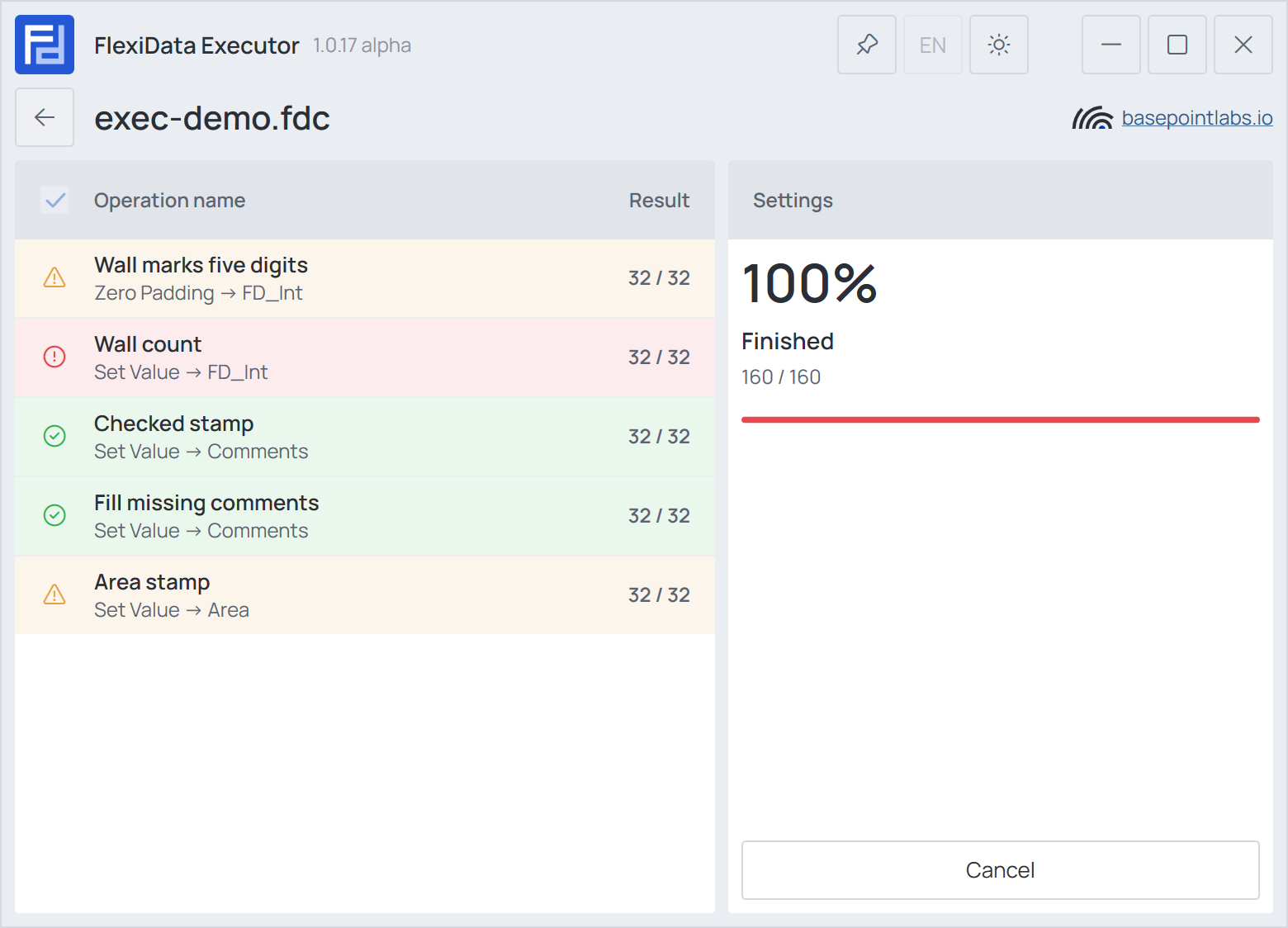
④ Run N operations (F5) starts. While it runs, each operation row shows its progress and the button becomes Cancel (Esc). When the run ends, each row keeps the color of its result and the report opens.
The title bar
Three small buttons beside the window controls:
- Pin to Revit (the pin) moves the Executor into a pane docked in Revit, so it stays at hand while you work in the model; click it again to get the window back.
- EN / DE switches the language at once — see Languages.
- The sun/moon switches light and dark.