
Categories
Step 1 Categories of every operation says which elements it works on: a searchable list of Revit categories with a count of those ticked (N selected).
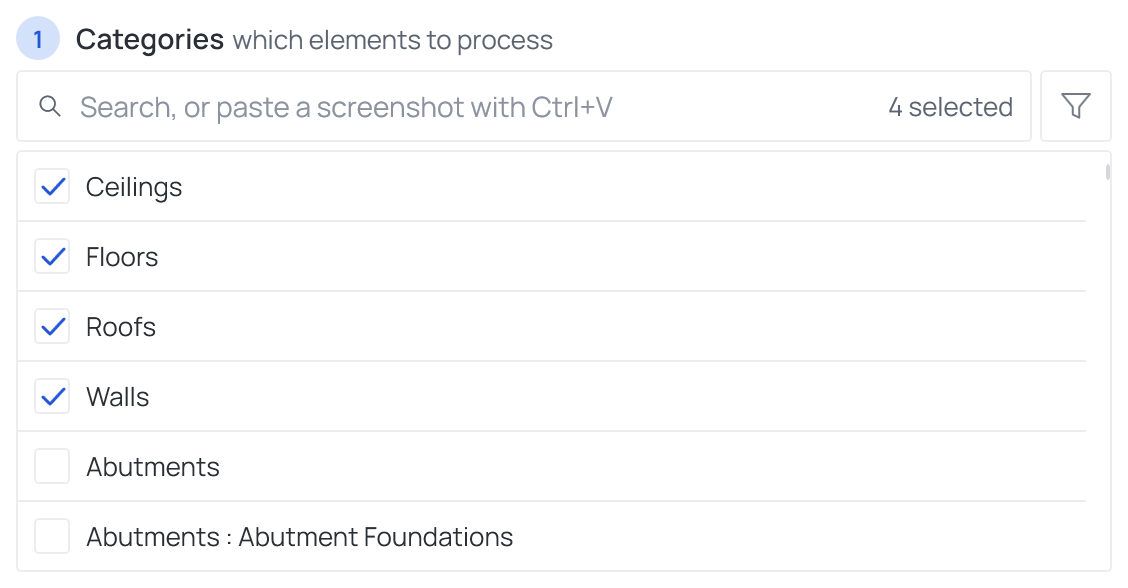
Ticking
- Click anywhere on a row to tick or untick it.
- To tick many at once, highlight them with Ctrl+click or Shift+click and press Space.
- Typing in the search filters the list.
- Ticked categories move to the top of the list, so what an operation works on is always visible first.
To narrow the elements of the ticked categories further — one storey, one family, the ones still empty — add a filter.
Ticking categories from a screenshot
Long category lists rarely need to be ticked by hand. If the categories are listed anywhere you can see — Revit's Visibility/Graphics dialog, the categories of a schedule or a view filter, a BIM execution plan, an e-mail — take a picture of them and paste it:
- Capture the list: Win+Shift+S and drag over it (any screenshot tool that copies to the clipboard works).
- Click into the category search in step 1 and press Ctrl+V.
The Configurator reads the names on the picture and ticks every category it recognizes. English and German names both work, whichever language the window is in, and small reading errors are absorbed. The text is read by Windows' own text recognition on your machine — the picture goes nowhere.
A strip under the search says what happened:
| Strip | Meaning |
|---|---|
12 categories ticked from the screenshot |
Ticked; the new rows stay highlighted for a few seconds |
… ticked from the screenshot, 3 already were |
Some were ticked before |
Every category on the screenshot was already ticked |
Nothing to add |
2 not recognized |
Lines on the picture that are not a category name; point at it to read them |
No category recognized on the screenshot |
Nothing on the picture matched — try a tighter, sharper capture |
A paste only ever adds ticks; it never clears one. If Windows has no text-recognition language installed, the strip says so: add the English or German OCR language pack in Windows settings.
Categories only some Revit years have
The list holds the categories of every Revit from 2021 to 2027, since one .fdc serves them all,
so a few of them exist only in some years: Cable Types from 2026, the Boundary Conditions only in
2027, Electrical Spare/Space Circuits up to 2025.
Tick such a category freely. In a Revit without it, the operation finds nothing there and works on its other categories; the Executor's configuration check names the category before the run, and says so when the operation therefore does nothing at all.