
Unique Identifier
Numbers elements so that no two get the same number. Door numbers, equipment tags, sequential marks per level or per room.
Steps
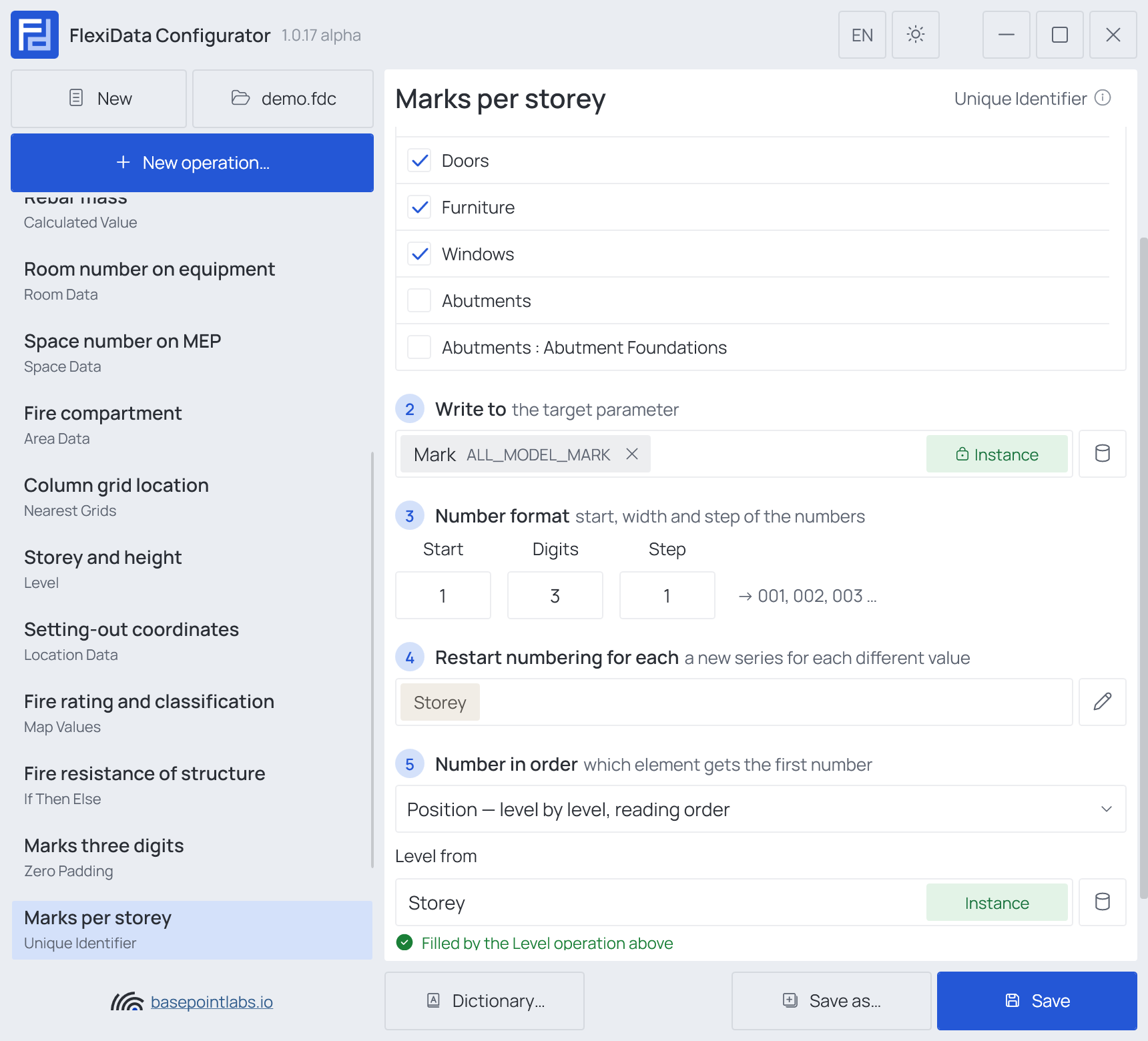
- Categories — which elements: tick the categories, and add a filter if only some of them should take part.
- Write to (any parameter) — the target parameter, which receives the number (instance parameters only).
- Number format — start, width and step of the numbers: Start, Digits (
3gives001) and Step. A gray line shows the first numbers. - Restart numbering for each — optional: a new series for each different value of these parameters, e.g. per
Levelor per room number. Left empty, it reads None — one series for all elements. - Number in order — which element gets the first number; see Number in order.
Example
| Setting | Value |
|---|---|
| Categories | Doors, Windows, Casework, Furniture |
| Write to | Mark |
| Number format | Start 1, Digits 3, Step 1 |
| Restart numbering for each | Level |
| Number in order | Position — level by level, reading order |
| Element | Where it is | Mark after |
|---|---|---|
| Door 501230 | L00, top left |
001 |
| Window 501244 | L00, right of it |
002 |
| Door 501301 | L01, top left |
001 — a new series on the next level |
Number in order
Step 5 decides which element gets the first number:
| Order | How it numbers |
|---|---|
| Position — level by level, reading order | Levels from the lowest up; on each level, rows from the top of the plan down, left to right within a row. Elements less than 500 mm lower than the first of a row count as the same row |
| Parameter value | By the value of a parameter you pick: numbers by size, text the way a person reads it — D-2 before D-10 |
| Element ID — creation order | In the order the elements were created |
Reverse turns the whole order round. Elements with no position, level or value go last. A file saved with an older order — by level, X or Y location — shows it as (older setting) and keeps it until you pick another.
Level from (with Position) names the parameter that says which level an element is on. Left empty, it is the level Revit assigns, which is often wrong for hosted and spanning elements. The reliable way is a Level operation earlier in the list that writes the level into a parameter, named here — the Configurator then confirms it in green. If that Level operation writes several levels or the top level, a note explains which level Position will use.
Restart numbering for each
The pencil button at the end of step 4 opens the list of parameters a new series starts for.

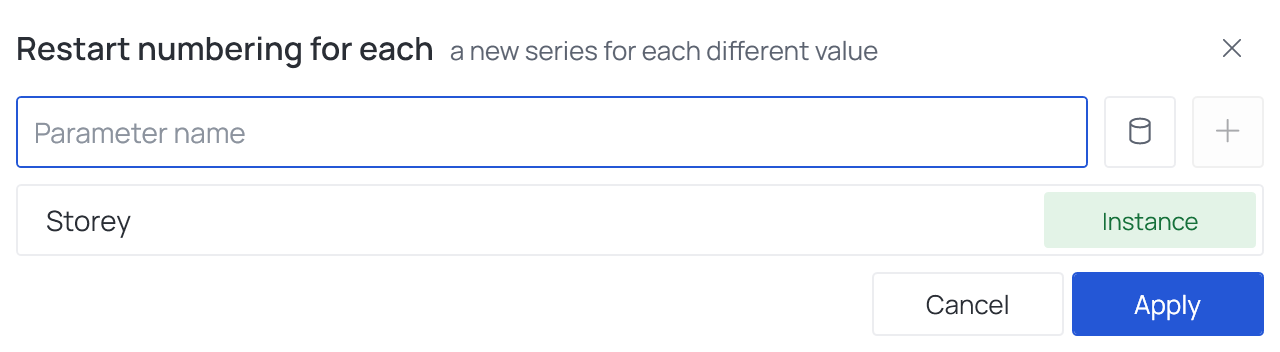
Add parameters as in Combine Values — by name, or from the built-in list. With two, a new series starts for each pair of values (per level and per department, say). Apply keeps the list; an empty list numbers all elements in one series.
More settings

Continue numbering keeps the numbers elements already have and numbers only the rest. Without it, every run numbers everything again from the start.
- The rest get the next numbers after the highest one in their group.
- The highest number is looked for across the whole model — all elements of the chosen categories in the same group — whatever the filter or Whole model / Active view / Selection. A number one element has is never given to another.
- A copy that repeats an older element's number gets a new one; the original keeps its own.
- Text such as
A-12is kept but not counted: only a value that is a number and nothing else counts. If a later Prefix Suffix turns001intoD-001, Continue numbering no longer sees it — number into a parameter of its own and build the final mark with Combine Values.
Warning
Without Continue numbering, adding one door at the start of the order shifts every number after it. Turn it on once the numbers are issued.
Works with
- Parameters: any parameter of the element — shared, project, family or built-in — typed by name, or a built-in one picked from the list; see Which parameters an operation can use.
- Smart tags: in Restart numbering for each — a series per
{Category}, say — see Smart tags. - Only if empty: tick it for this operation in the Executor's list before a run, and it writes only where the target is still empty.
- Filter, Active view, Selection: like every operation — see the filter and Whole model, Active view, Selection.
Used in: Unique numbers per level.