FlexiData
Automate parameter work across thousands of elements at once, then reuse the same operations on every project.
How it works
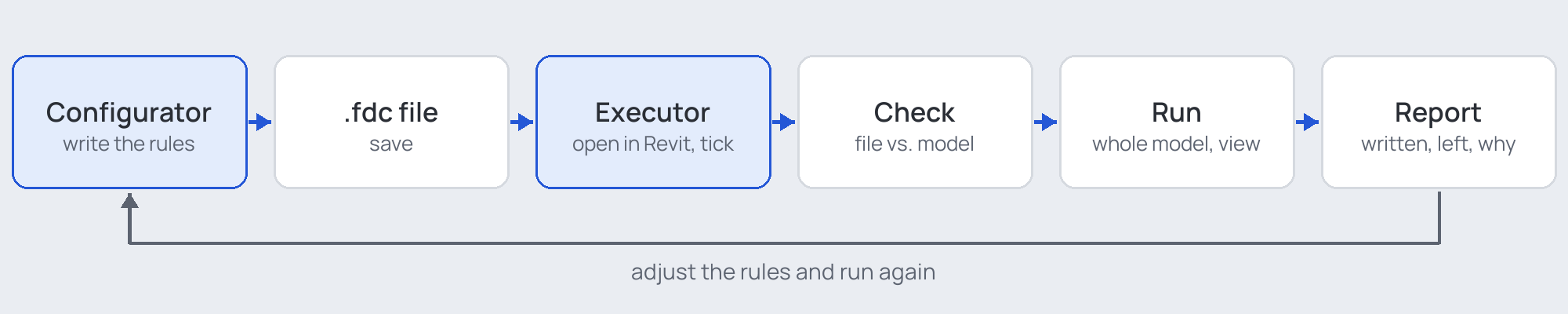
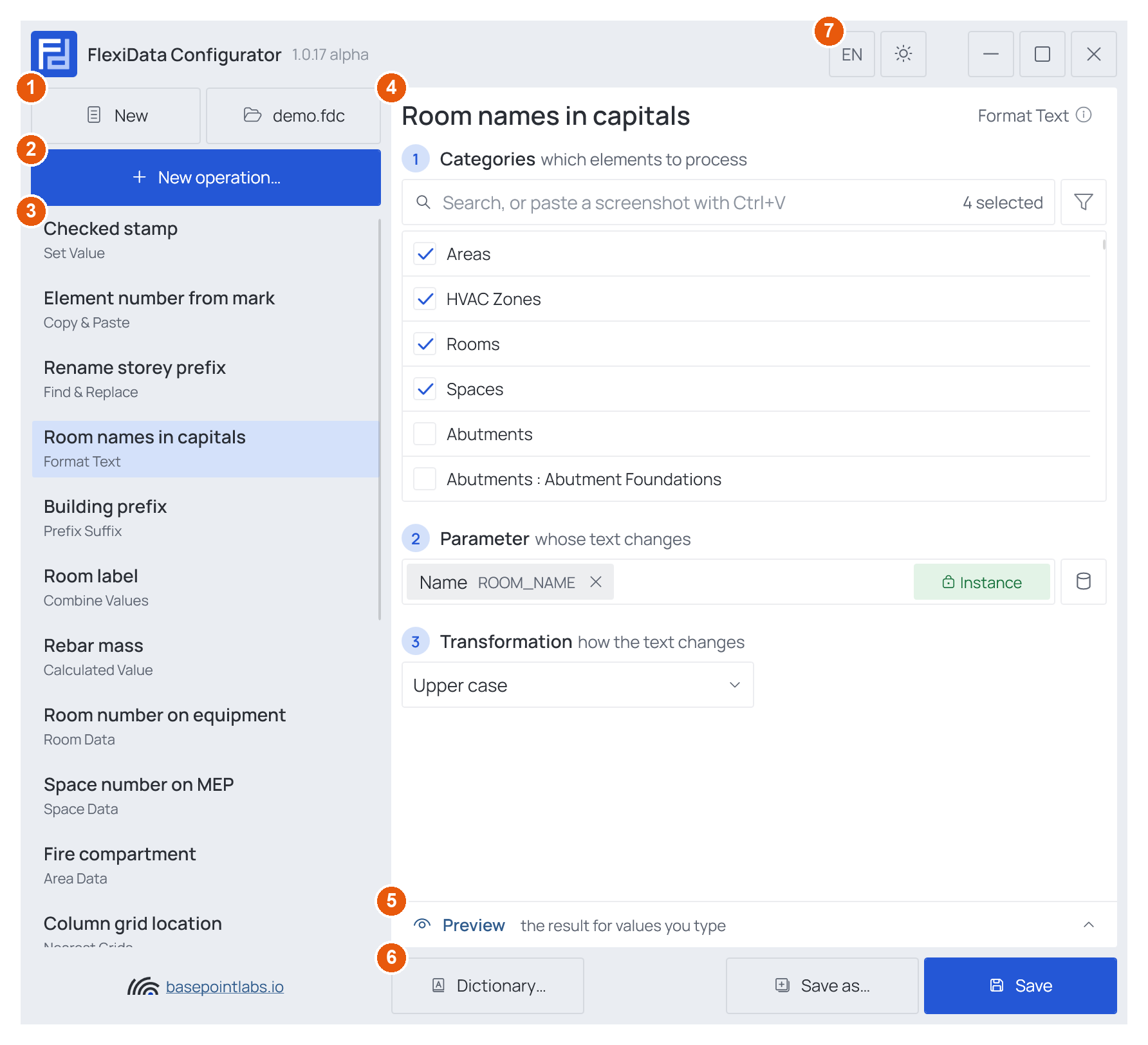
- 01Write the rules in the Configurator — a list of operations, saved as one
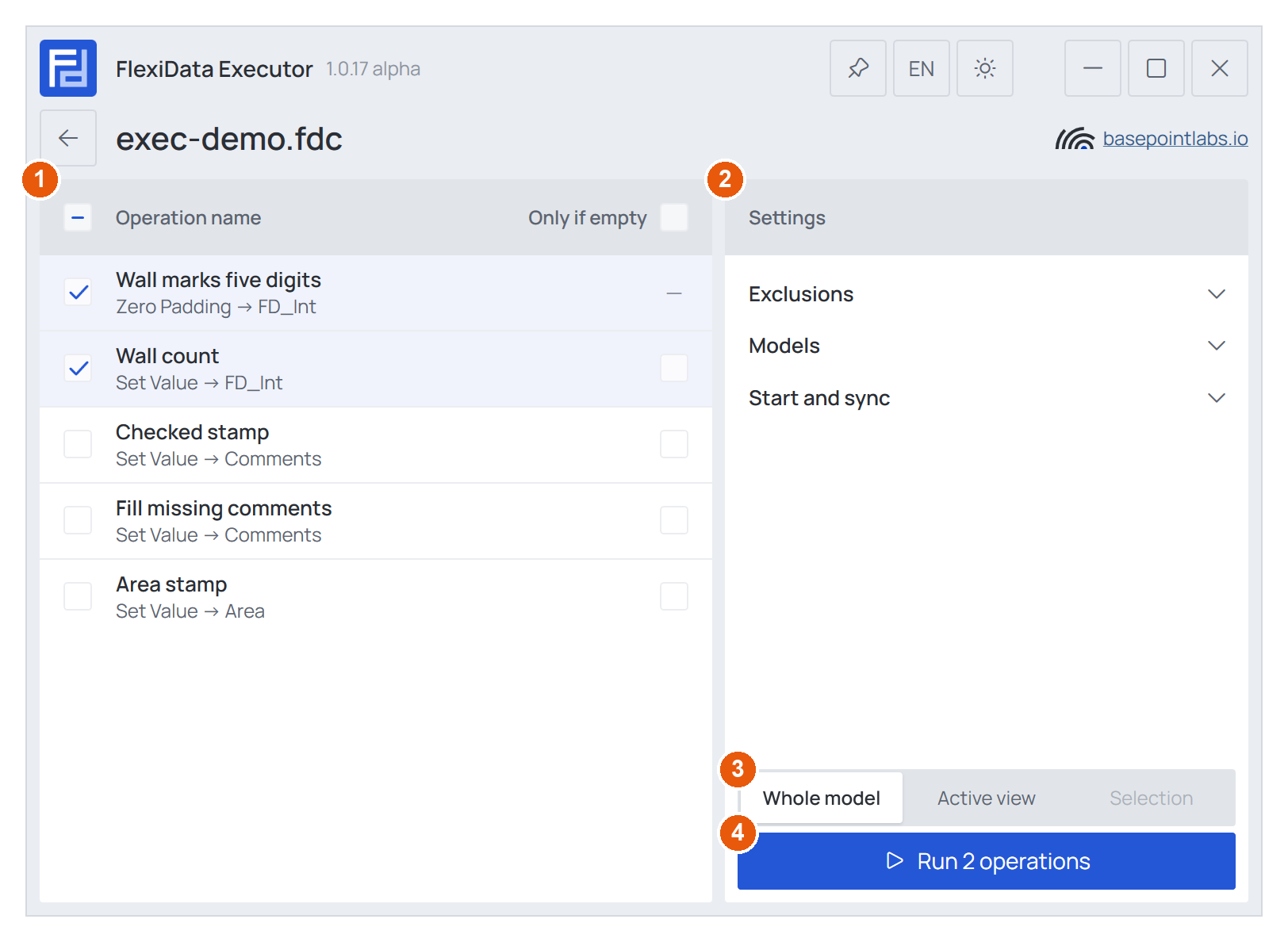
.fdcfile. - 02Open the file in the Executor inside Revit, tick what to run — whole model, active view or selection.
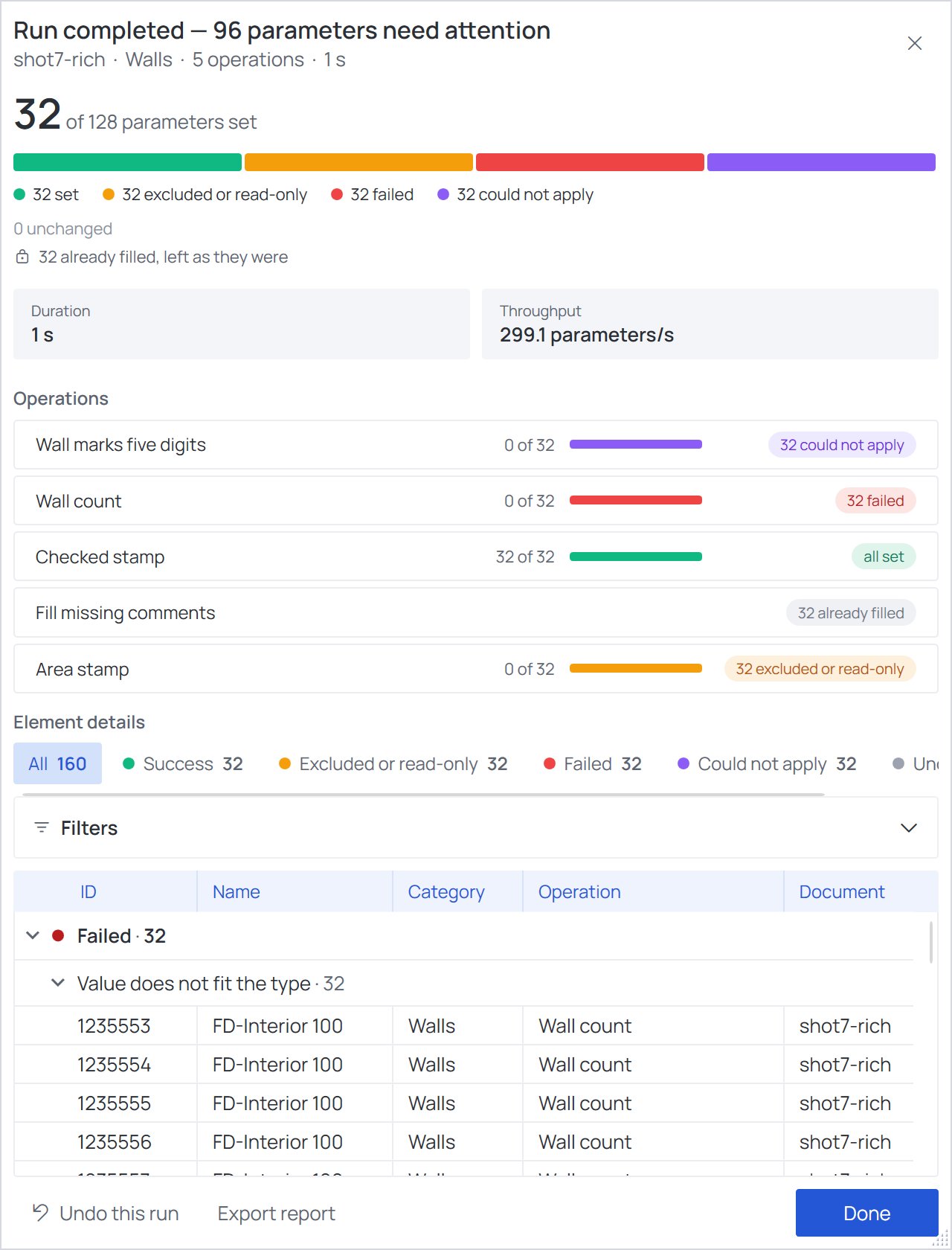
- 03Read the report: what was written, what was not, and why. Undo the whole run in one step.
19 operations
Values & text
- Set ValueWrites one fixed value into every element the operation selects.
- Copy & PasteCopies one parameter’s value into another on the same element.
- Find & ReplaceReplaces a piece of text inside a parameter’s value.
- Format TextRewrites the text of a parameter in another case.
- Prefix SuffixAdds text before and/or after the value a parameter already holds.
- Combine ValuesJoins the values of several parameters into one.
- Calculated ValueWorks out an arithmetic expression over parameters and writes the number.
Read from the model
- Room DataWrites a parameter of the room an element stands in into that element.
- Space DataLike Room Data, for MEP spaces.
- Area DataLike Room Data, for areas of one area scheme.
- Nearest GridsWrites the grid lines nearest to an element.
- LevelWrites the name of the level an element belongs to.
- Location DataWrites where an element is, or which way it faces.
Logic & structure
- Map ValuesLooks each element up in a table and writes what the matching row says.
- If Then ElseTests conditions on the element and writes one value or another.
- Zero PaddingPads values to a fixed length with leading or trailing zeros.
- Unique IdentifierNumbers elements so that no two get the same number.
- Push to NestedCopies a parent family’s parameter into the families nested in it.
- Move to WorksetMoves elements onto the workset whose name matches a rule.
Screenshots
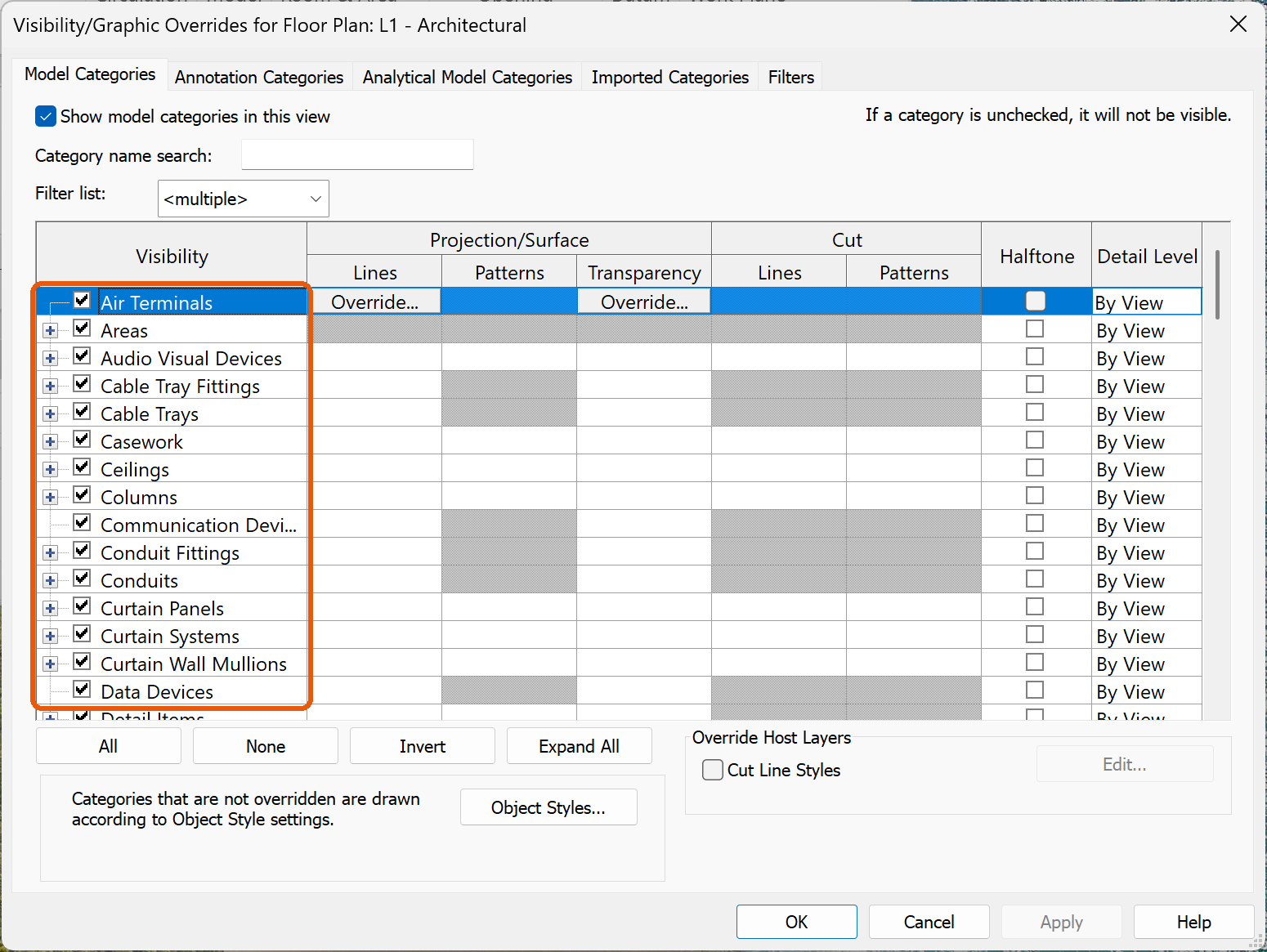
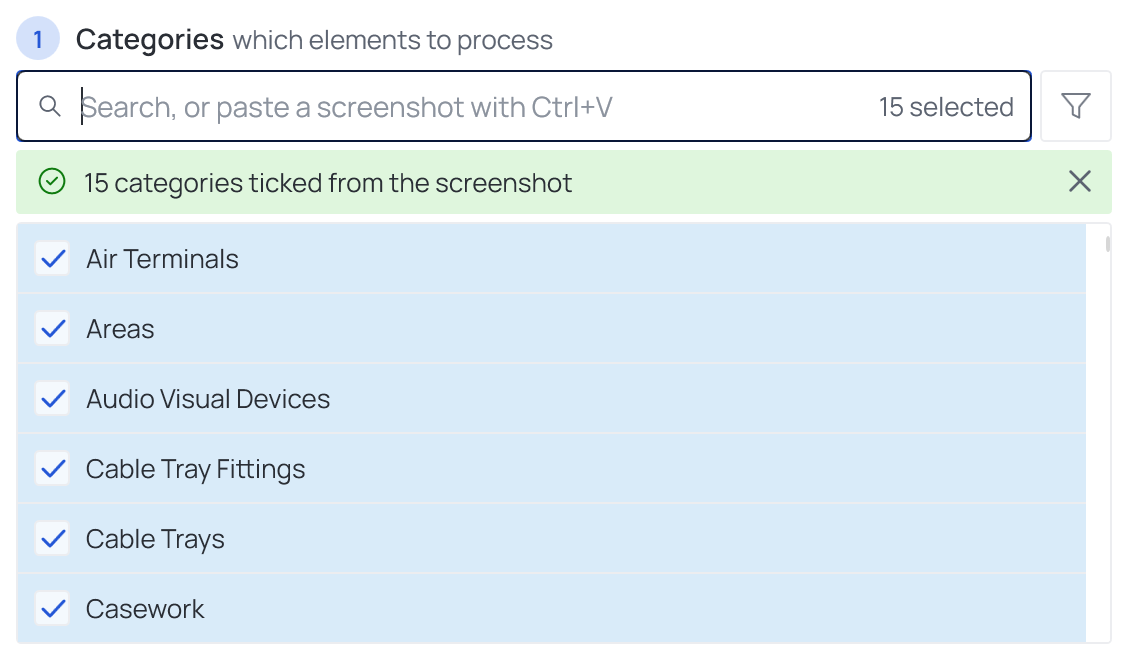
Revit screenshot → Ctrl+V
Paste a screenshot of any category list — every category on it is ticked.
Requirements
| Revit | Autodesk Revit 2021–2027 |
|---|---|
| Windows | 64-bit Windows |
| Languages | English and German, switchable at any time |
| Models | Works in workshared models; never writes to linked models |